
Activities and the timeline
Every contact, company and deal has an Activity timeline: one place for notes, calls, meetings, photos, emails, campaign sends, texts, form submissions and automatic updates, newest first.
Who can do it:
| Task | Owner | Admin | Member |
|---|---|---|---|
| Log a note, call or meeting | Yes | Yes | Yes |
| Add photos | Yes | Yes | Yes |
| Edit an entry | Author only | Author only | Author only |
| Delete an entry | Yes | Yes | Their own only |
Log a note, call or meeting
- Open a contact, company or deal.
- In the Activity box, pick Note, Call or Meeting.
- For a call or meeting, add a Title (optional), and set When (calls) or Start (meetings). It starts at now, in your time zone.
- For a meeting, pick a Length: 15 min, 30 min, 45 min, 1 h, 1.5 h, 2 h, or Custom… (5 minutes to 24 hours).
- Write the note (required, up to 10,000 characters).
- Click Log note, Log call or Log meeting.
What you'll see: the entry at the top of the timeline, with your name, the time, and its own color and icon.
Only meetings can be in the future, up to 2 years ahead. Future meetings also appear on the calendar.
Add photos to a customer's timeline
Teammates can add pictures to a contact's, company's or deal's timeline from a phone's camera, a phone's photo library or a computer, with a caption if they like. Each batch is one entry, and your workspace's pictures are private to it. The whole story, with limits, storage and removing photos, is in Photos on timelines.
- Open a contact, company or deal and choose Photos in the Activity box.
- On a phone, tap Take photo to use the camera, or Choose photos to pick from the library. On a computer, click Choose photos (or drag files in). One entry holds up to 10 photos.
- Optional: type a Caption (optional) (up to 500 characters), or tap Change time if the pictures were taken earlier. If they're about one of this contact's pets, visits, stays or service records, pick it under About (optional) (or start from that record: Add photos on a pet, a stay or a service record, Photos on a visit), so before and after pictures sit with it.
- Tap Post photos.
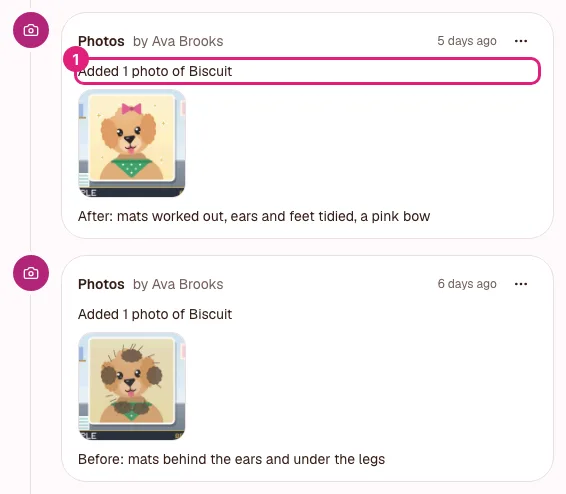
What you'll see: one entry, "Added 3 photos" (or "…of Rex", "…to a visit"), with your name, the time, the caption and a row of thumbnails. Tap one to see it larger.
Photos are JPEG, PNG or WebP, up to 5 MB and 4,096 pixels each way. Your phone makes each one smaller first and leaves out where it was taken. An iPhone's HEIC pictures are turned into JPEG by Safari; on other computer browsers, export a JPEG first. Anyone can add photos. The person who added a picture, or an owner or admin, can remove it; photos on a completed service record can be removed by the person who added them for 24 hours, then only by an owner or admin. Deleting an entry keeps it in Trash for 30 days.
Edit or delete an entry
Open the entry's menu (the "…" button):
- Edit: authors only. For meetings you can also change the start date, time and length.
- Delete: the author, or an owner or admin.
- On a photo entry the menu says Edit caption and Delete photos.
Automatic updates, emails and bookings can't be edited. Bookings show Move or cancel instead; see Online booking.
What appears automatically
Fifi adds Update entries for you, such as:
- "‹name› was added";
- "was linked to / unlinked from ‹company›";
- "’s lead status changed from New to Contacted";
- "moved from Lead to Qualified";
- "was won 🎉", "was lost (Price)", "was reopened";
- expected close date set, moved or cleared;
- Task “‹title›” completed;
- Form submitted: "submitted “‹form›”".
You'll also see:
- Email sent and Email received, with badges like Opened, Opened (unconfirmed), Not opened yet, Replied, Clicked and Unsubscribed. See Sending email and tracking.
- Campaign sends, opens, clicks, replies and unsubscribes. See Campaigns.
- Photos your team added, with their thumbnails. See Add photos to a customer's timeline.
- Text sent and Text received, once texting is available. See Texting.
- Meetings booked online, marked "Booked online" or "Booking cancelled", and ones your team booked in Fifi, marked "Booked by ‹name›" (see Online booking).
Company timelines
A company's timeline shows everything logged on the company and on its contacts and deals. An email that two teammates both synced shows once, with "also in 1 other mailbox".
Older entries
The timeline shows 25 entries at a time. Click Show older for more.
An empty timeline says "Nothing here yet. Log a note, call or meeting above."
Troubleshooting
- I can't edit an entry. Only its author can. Automatic updates and emails can't be edited at all.
- There's no Photos choice, or a photo won't upload. See the troubleshooting list in Photos on timelines.
- "Pick a time…" errors on a call or note. Only meetings can be in the future.
- An email isn't on the timeline. Check the contact's email address matches, and that they aren't marked Don't track email. See Connecting your email.