
Set up invoicing
About 20 minutes · For owners and admins · Needs Pro or Business · Last checked in v0.61.0, Oct 2026
Invoices start from a few settings: how they're numbered, when they're due, what tax they carry and what they say about your business. You set them once, and every new invoice starts from them. This guide covers those settings only. It doesn't cover Stripe, QuickBooks, recurring invoices or other tax rates on one invoice; Choose how you'll invoice lists what Fifi leaves out.
Before you start
- Who can do it: owners and admins. Members can write invoices but don't see Settings → Invoicing.
- Needs: the Invoicing module, which is on the Pro and Business plans. New agency, appointment, pet, home services and freight workspaces start with it on.
- Have ready: your business address; the sales tax rate your accountant or state tax office gives you, if you charge tax; and how customers pay you (check payee, bank transfer details you are happy to share, card at the office).
- Not in a sample. A sample workspace has the settings but never sends email. Do this in your own workspace.
Note
Fifi works out tax from the rate you enter. It isn't tax advice. Ask your accountant which of your sales are taxable.
Steps
- Open Settings → Modules.
- Turn on Invoicing if it's off. The Invoicing tab appears in Settings.
- Open Settings → Invoicing.
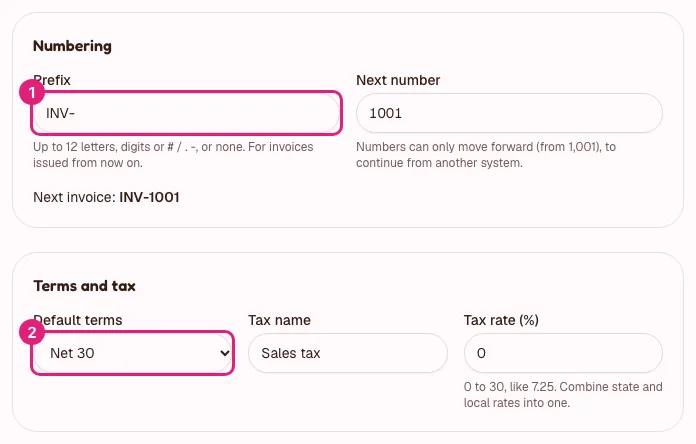
- Under Numbering, type a Prefix, for example
INV-. Use up to 12 letters, digits or# / . -, or leave it empty. - Set Next number. Leave it alone if this is your first invoice. If you're moving from another system, enter the next number you would have used there. The number can only move forward.
- Under Terms and tax, pick Default terms: Due on receipt, or Net 7, 15, 30, 45 or 60.
- Type your Tax name, for example
Sales tax, and your Tax rate (%), for example8.875. Use 0 if you don't charge tax. Combine state and local rates into one rate. - Under On your invoices, check Business address. It's the same address Settings → Workspace uses, and it appears on every invoice and at the bottom of your campaign emails.
- Fill in Your details (optional) with what customers need to reach you or file you: phone, billing email, tax ID or license number.
- Fill in How to pay (optional) with how customers pay you outside Fifi. For example:
Checks payable to Ridgeline Pest Control. ACH details on request. - Fill in Default notes (optional) with a thank-you or your policies. Every new invoice starts with this text.
- Under Reminders, choose Remind customers about overdue invoices. Off is the default. The other choices send a reminder 3, 7 or 14 days after the due date, then again every 3, 7 or 14 days, up to 3 reminders for one invoice.
- Click Save settings.
What you'll see: "Saved." beside the button, and under Numbering the line "Next invoice: INV-1001" (your own prefix and number).
Heads up
Turning reminders on also reminds invoices that are already overdue. Each gets its first reminder at the next daily run. Leave reminders off until you've read Reminders.
What the settings do
| Setting | What it changes | Note |
|---|---|---|
| Prefix and Next number | The number an invoice gets when you issue it | Numbers are assigned when you send or mark as sent, in order, and never reused. A draft has no number |
| Default terms | The due date of new invoices | You can pick a different term, or a custom date, on one invoice |
| Tax name and Tax rate (%) | The tax line on new invoices | One rate for the whole invoice. Each line has a Taxable box. Tax is worked out once, on the taxable lines |
| Business address, Your details, How to pay, Default notes | The words on every new invoice | Anyone who has an invoice or its link can read them, so share only what you'd tell a customer |
| Remind customers about overdue invoices | Automatic reminder emails | Off unless you turn it on |
Changes apply to invoices you issue from now on. An issued invoice keeps the business name, address, details and payment instructions it was issued with. The business name and logo come from Settings → Workspace.
Check how it looks
Try it on a draft. A draft has no number, so nothing is used up.
- Open Invoices and click New invoice.
- Under Customer, pick a contact. Use yourself if you have a contact with your own email.
- Under Lines, click Add line. Type a description, a quantity of
1and a unit price of100. - Click Save draft. Fifi opens the draft's page. Click Preview.
- Read the preview as your customer would. Check the address, your details, the tax line and how to pay.
- Close the preview. On the draft's page, open More actions and choose Delete… to remove the draft. An admin can restore it from Settings → Trash for 30 days.
What you'll see: the invoice on its own page, marked DRAFT, with your business address, your payment instructions and the tax line for your rate.
Check your work
- To do: Invoicing is on in Settings → Modules.
- To do: Next invoice shows the number you expect.
- To do: Default terms match how you want to be paid.
- To do: The Tax rate (%) is the rate your accountant gave you, or 0.
- To do: Business address is right: it's also in your campaign footers.
- To do: How to pay says who to make checks out to, or how to send a transfer.
- To do: You looked at a preview and it reads the way you want.
- To do: Automatic reminders are off, or you chose a number of days on purpose.
Troubleshooting
| What you see | Why | What to do |
|---|---|---|
| "Numbers can only move forward: enter a number at least as high as the next one now." | You entered a Next number lower than the next one now | Enter that number or a higher one |
| "Up to 12 letters, digits or # / . - (starting with a letter or digit)." | The Prefix has a character that isn't allowed | Remove spaces and other symbols |
| "Enter a rate from 0 to 30, like 7.25" | The Tax rate (%) is not a number from 0 to 30 | Enter a number such as 7.25. Leave out the % sign |
| "Use at most 6 lines and 300 characters." | The Business address is too long | Shorten it |
| There is no Invoicing tab | The module is off, or you're a member | Ask an owner or admin to turn on Invoicing in Settings → Modules |
| "Samples don't send email." | You're in a sample workspace | Set up in your own workspace |
Related
- Create and send your first invoice: the next step.
- Invoices: every setting in full, including the QuickBooks names.
- Choose how you'll invoice: before you decide on Stripe or QuickBooks.
- Roles and permissions: who can do what.
Something out of date? Tell us.