
Set up a pest control or home services business
About 40 minutes · For owners · Needs Business · Last checked in v0.61.0, Oct 2026
This guide is for pest control, lawn care, cleaning and trades businesses that visit customers at their homes or buildings. You end with technicians who have hours and licences, a product list, booking types customers can book online, repeat visits for quarterly plans, a service record on each visit, a call-back form and a first invoice. Your workspace calls people Customers and sales Jobs. This guide doesn't cover routing and dispatch, which Fifi doesn't do. Cleaning and similar businesses can skip the service records; the guide says so where it matters.
Is this the right guide?
- Business type: Home and field services.
- At the end you'll have: technicians with hours, booking types, products with EPA numbers, service records you can print or email, quarterly plans that book themselves, and jobs on a pipeline.
- Time: about 40 minutes, not counting your customer list.
- Plan: Pro covers everything here except Texting, which is on Business. During the beta every workspace has every module. See Modules, business types and plans.
New to Fifi? Do Your first hour with Fifi first.
Start with the sample
- Go to
/try/pestand sign in. Fifi opens Ridgeline Pest Control (sample) on the week calendar, with four technicians' routes. - Click a past visit, then Service record. Look at the products, the EPA Reg. No., the technician's licence and the printed report.
- Click Jobs. Look at the board: service agreements from "inspection requested" to signed.
- Open Settings → Service records. Look at the product list and the technicians' licence numbers.
- Open a customer's page and look at Activity: the ant trail before a visit and the treated baseboard after it are photos on the timeline (they show where Fifi's file storage is set up), and the Brightway Food Distribution account has a bait station photo.
The sample's EPA numbers are made up. Nothing in a sample is sent to anyone. Click Start your real workspace on the banner when you're ready.
Create the workspace
- On Create your workspace, type your company's name and click Continue.
- Under What kind of business is this?, choose Home and field services.
- Pick a color scheme and click Create workspace.
What you'll see: Customers, Jobs, Service records and Calendar in the menu. Home and field services starts with Jobs (the pipeline), Email, Reports, Online booking, Forms and automations, Texting, Service records and Invoicing on. Campaigns is off.
Turn on what you need
Open Settings → Modules. Who can do it: owners and admins.
| Module | Set it | Why | Plan |
|---|---|---|---|
| Jobs and pipeline | On | Service agreements from inspection to signed | Free |
| Online booking | On | Booking pages and technicians' routes | Pro |
| Service records | On for pest control and lawn care; off for cleaning | What was applied on each visit | Pro |
| Invoicing | On | Bill a visit and record payments | Pro |
| Forms and automations | On | A free-inspection form and a call-back task | Pro |
| On | Conversations with customers, property managers and agents | Free | |
| Reports | On | Dashboard reports | Free |
| Texting | On, when it's not Coming soon | "On my way" texts and reminders | Business |
| Campaigns | Turn on | Seasonal emails to customers | Pro |
| Ask Fifi | Optional | Questions about your numbers; draft emails | Add-on |
Business details
- Open Settings → Workspace.
- Click Upload logo. It shows on printed service reports.
- Under Business address, type your address and click Save address. It appears on invoices and in campaign footers.
- Pick Colors and click Save colors.
See Set up your logo, colors and business details.
Your team and hours
- Open Settings → Members. Under Invite a teammate, type each person's Email, choose a Role and click Invite. Technicians can be Members. An office manager is usually an Admin.
- Each technician opens Settings → Booking → Your hours, chooses Your time zone, sets Weekly hours and clicks Save hours. Until they do, nobody can book them.
- Open Settings → Service records, go to the Technicians tab, type each technician's Applicator licence number and click Save. Only owners and admins see this page.
A licence is copied onto each record when it's completed. If a licence number changes, change it here. Records completed earlier keep the number that was in force. See Set up your team.
Products, booking types, visits and service records
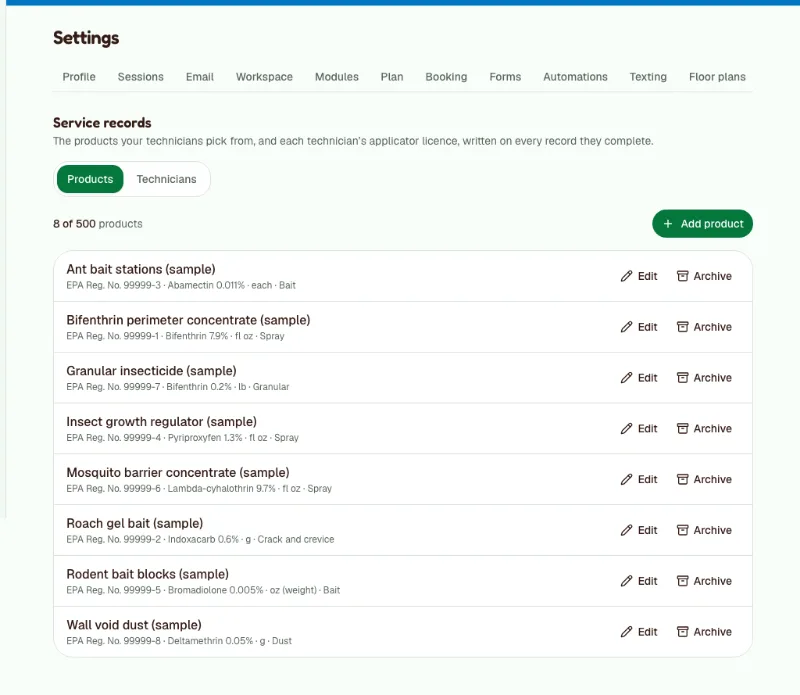
Add your products
- Open Settings → Service records and, on the Products tab, click Add product.
- Type the Name and the EPA Reg. No. exactly as printed on the label, such as
279-3206. Glue boards and traps have none. - Optionally fill Active ingredient, Default unit and Default method. They fill in when you pick the product on a record.
- Repeat for each product. Archive one you stop using.
Create booking types
- Open Settings → Booking and, under Booking types, click New booking type.
- Type a Name, Description and Page address.
- Choose Length and Free time after, which covers travel and cleaning up.
- Set Minimum notice (the sample uses 4 hours).
- Under Who takes it, tick the technicians.
- Under Questions, set Phone number to required. Click Add a question for "Service address" (required) and "What are you seeing?"
- Tick Taking bookings and click Create.
The sample uses four. Start with the ones you sell.
| Booking type | Length | Free time after |
|---|---|---|
| Free termite inspection | 1 hour | 30 minutes |
| General pest service | 45 minutes | 30 minutes |
| Rodent inspection | 1 hour | 30 minutes |
| Mosquito yard treatment | 30 minutes | 30 minutes |
Pro allows 5 booking types. Leave Needs a seat off: technicians travel, they don't use tables.
Repeat quarterly plans
A customer on a quarterly plan gets a repeating appointment. Book the first visit and Fifi books the rest.
- Click Calendar, then Add, then Book an appointment.
- Choose the Booking type, the Customer, Who and the time.
- Under Repeat, choose Every 3 months. Choose how it ends.
- Check the preview and click Book appointment.
What you'll see: the first visit and the next visits booked within moments. A visit that can't be booked, such as a technician's day off, becomes a task. See Online booking.
Write a service record
- Open a visit on the calendar and click Service record. Fifi fills in the date, technician, service, customer and address.
- For each product, click Add product and pick it. Fill in Amount and Unit, Target pests, Method and Areas treated.
- Add Conditions (weather) and Notes.
- Click Save and complete.
What you'll see: the technician's name and licence stamped on the record. Click Print for a report to save as a PDF, or Email to customer. The record is kept at least 3 years. See Service records.
Photos of the work. Add before and after pictures to the customer's timeline, about the visit's record: the activity, the bait station you placed, the damage you found. Technicians can do it from a phone. See Photos on timelines.
Heads up
Fifi isn't legal advice. Record-keeping rules for pesticide applicators differ by state. Check your state's rules and keep your own exports if you must keep records longer.
Pipeline and naming
Every job belongs to a company. For homes, make one company called "Residential customers" and file each home's jobs under it. The stages never change:
| Stage | Meaning for a service business |
|---|---|
| Lead | Inspection requested |
| Qualified | Inspection done, quote ready |
| Proposal | Service agreement sent |
| Negotiation | The customer is deciding |
Close the job as Won when the agreement is signed. Name each job with the place and the plan, for example "Maple Street Medical: quarterly service" or "Ross, 42 Elm St: termite bond".
Custom fields worth adding
Open Settings → Custom fields, choose a tab and click Add field. Customers are on the first tab.
| Record | Label | Type | Why | Reminder |
|---|---|---|---|---|
| Customer | Gate code | Text | How the technician gets in | No |
| Customer | Pets on property | Checkbox | Keep pets inside after treatment | No |
| Customer | Property type | Choice | House, Townhome, Condo, Commercial | No |
| Company | Service frequency | Choice | Monthly, Quarterly or Annual | No |
| Company | Square footage | Number | Pricing commercial work | No |
| Job | Agreement renewal | Date | A task for the job's owner before it renews | Yes, 30 days before |
See Custom fields and reminders.
Tags to start with
In Settings → Tags, click New tag. The sample uses these.
- Residential
- Commercial
- Quarterly plan
- Termite bond
- Rodent
- Mosquito
- Realtor partner
- Newsletter
Forms and automations to start with
A free-inspection form
- Open Settings → Forms and click New form.
- Type a Name ("Request a free inspection") and a Page address.
- Set Phone to required. Click Add a field for "What pest?" (Choice) and "Service address".
- Write a Thank-you message ("We'll call you back within the hour").
- Choose a tag to add, tick Taking submissions and save.
One automation
In Settings → Automations, click New automation.
| When | Only if | Then |
|---|---|---|
| A form is submitted (the inspection form) | Nothing | Create a task: "Call back within the hour", assigned to your office manager, due in 0 days |
Automations create tasks. They never email customers. See Forms and Automations.
Bring in your customers
- Export your customers from your old system as a CSV file. A column called address, street, service address or location fills Address.
- Include First name, Last name, Email, Phone and Address. Add your custom fields, such as Gate code, as columns.
- Open Customers and click Import. Under 1. Choose a file, pick the “Contacts” option, choose your file and click Continue.
- Match the columns, choose Skip it (keep what's in Fifi) for duplicates, click Preview import and then import.
- Import commercial accounts the same way from Companies.
See Import, export and Trash and Bring in your existing customers.
Email and texting
- Open Settings → Email and click Connect Gmail on the Gmail card. Outlook shows Coming soon until Fifi's Microsoft connection is set up.
- Booking confirmations and a reminder about 24 hours ahead go out by email.
- Texting is on Business. If Settings → Modules lists Texting as Coming soon, it isn't available yet. When it is, open Settings → Texting and click Get a number. A new number needs Fifi's approval before it can send. Reminders by text go only to customers who asked for one on the booking page.
See Connecting your email and Texting.
Invoicing for this business
- Open Settings → Invoicing and set Prefix, Next number, Default terms, Tax name and Tax rate (%). Sales tax rules differ by state and by what you sell, so ask your accountant.
- After a visit, open the service record and click Invoice, or open the visit and click Invoice.
- Fill in the price of the service. Add a line for each product you sell separately, and tick Taxable on the lines that are taxable.
- Issue it and send it, then record the payment.
A worked example at a 7.25% tax rate: a General pest service at $95.00 (not taxable) and 2 bait stations at $12.50 each (taxable) make a subtotal of $120.00, tax of $1.81 and a total of $121.81. Tax applies only to the taxable lines. See Choose how you'll invoice and Create and send your first invoice.
Your first campaign
A seasonal note works well. Turn on Campaigns first, then send "Spring treatment spots are open" to customers with the Quarterly plan tag. You need your business address saved and a mailbox connected.
- Open Marketing and click New campaign.
- Choose the audience, write a short message with your booking link, and send a test.
- Send.
With Ask Fifi on you can ask for "Draft a spring email to customers on a quarterly plan who haven't booked since July". See Campaigns and Send your first campaign.
Reports and the dashboard
Pin these three from Reports:
- Pipeline by stage: jobs from inspection to signed.
- Overdue tasks by assignee: call-backs that slipped.
- Won jobs by month: agreements signed.
Ask Fifi's first questions for a home services workspace are "Which open jobs close this quarter?", "What did each person win this quarter?" and "Which tasks are due this week?" See Know your numbers.
Your first week
- To do: Every technician has saved hours and their applicator licence.
- To do: Your products are in, with EPA numbers.
- To do: Your booking types are live and the link is on your website.
- To do: Your customers are imported.
- To do: You wrote and completed one service record, and printed it.
- To do: You added a before and after picture about a service record.
- To do: You set up one quarterly plan as a repeating appointment.
- To do: The free-inspection form is live and the call-back task works.
- To do: You issued an invoice from a visit.
- To do: Your mailbox is connected.
- To do: A job has a renewal date with a reminder.
What Fifi doesn't do for this business yet
- Routing and dispatch. The calendar shows each technician's day. Fifi doesn't order or map routes.
- Recurring invoices. Duplicate last time's invoice.
- A price list. Fifi suggests the last price you charged for a service.
- Legal compliance. Service records cover the common federal and state fields, but check your state's rules.
- Deleting a record early. A completed record can't be deleted for 3 years.
- Importing records. A CSV imports customers and companies, not service records.
- Pictures in the printed report. Photos stay on the customer's timeline and the record's page. The printed and emailed report has none.
If you run cleaning or a trade that applies no products, turn off Service records in Settings → Modules. Nothing else in this guide changes.
Troubleshooting and related
| What you see | Why | What to do |
|---|---|---|
| "This visit already has a record." | A record exists | Open it with the link in the message, or void it first |
| "Use the EPA Reg. No. as printed, like 279-3206" | The number has spaces or letters | Type the groups of digits joined by hyphens |
| Email to customer is greyed out | The record isn't completed, or the customer has no email | Complete it, or add an email address |
| No Service record button on a visit | The visit is in the future, or Service records is off | Open it on or after the visit date |
Still stuck?
Contact Fifi support with your workspace name, what you clicked and the exact message you saw. The troubleshooting guide covers the common ones.
Related: Service records, Online booking, Calendar, Invoices.
Next: Choose how you'll invoice, then Send your first campaign.
Something out of date? Tell us.