
Set up your logo, colors and business details
About 15 minutes · For owners and admins · Needs Pro or Business · Last checked in v0.61.0, Oct 2026
Customers see your business in a few places: the invoices and emails you send, your booking page and forms, and the footer of every campaign. This guide sets the pieces that appear there. Do it once, before you send anything to a customer. It doesn't cover the content of invoices or campaigns; the guides linked at the end do.
Before you start
- Who can do it: owners and admins. Only an owner can rename the workspace.
- Needs: the Free plan for the name, logo and colors. The business address field appears once Campaigns or Invoicing is on, and Settings → Marketing needs Campaigns (Pro or Business).
- Have ready: your logo as a PNG, JPEG or GIF file under 1 MB, your business's street address or registered P.O. box, and a sentence or two on how your business sounds.
Steps
1. Check the name and the business type
- Open Settings → Workspace.
- Check Workspace name. Owners can change it and click Save.
- Check Business type. It sets the words Fifi uses for your customers and deals ("Clients", "Jobs") and which report templates and Ask Fifi suggestions come first. Changing it does not turn modules on or off.
The Workspace address under the title is a short name Fifi made for the workspace. It is shown for reference and can't be changed.
2. Upload your logo
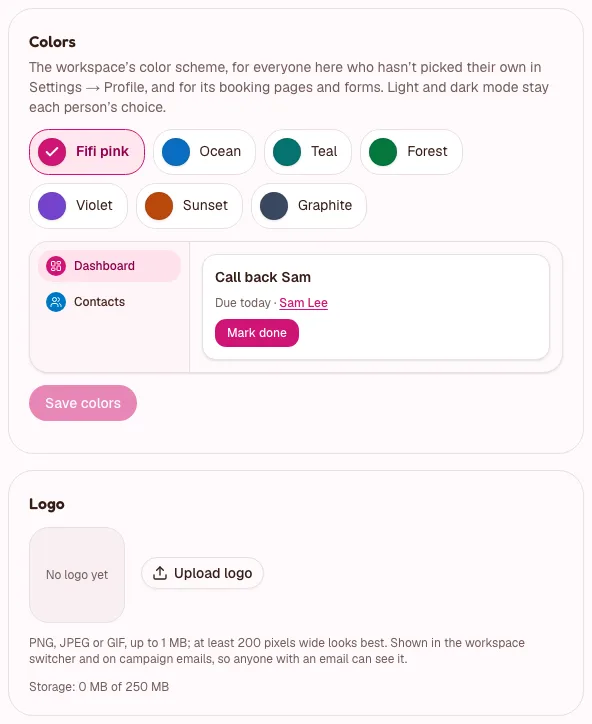
- In Settings → Workspace, find the logo section. It says "No logo yet" until you add one.
- Click Upload logo and pick a PNG, JPEG or GIF file.
- To change it later, click Replace. Removing or replacing a logo also removes the old one from campaign emails you have already sent.
A logo on a plain or transparent background works best. Fifi shows it small.
3. Pick your colors
- Under Colors, click a scheme: Fifi pink, Ocean, Teal, Forest, Violet, Sunset or Graphite. The preview shows a sidebar item, a card and a button in it.
- Click Save colors.
The scheme changes the app for everyone who hasn't chosen their own, and the booking pages, forms and invoice pages your customers see. Each person can pick their own colors for themselves in Settings → Profile, under Your colors; customers never see those. Details are in Workspace settings.
Note
Green for done, amber for warnings and red for errors stay the same in every scheme, so they always mean the same thing. Fifi's own pages and emails (sign-in codes, digests) stay Fifi pink.
4. Enter your business address
- In Settings → Workspace, find Business address.
- Type your street address or registered P.O. box, up to 6 lines.
- Click Save address.
Campaign emails show it in the footer, as the law requires for marketing email, and Fifi won't start a campaign without it. Issued invoices show the same address. You can also edit it from Settings → Invoicing; it is one address. See Invoices.
5. Set your brand voice and graphics
- Open Settings → Marketing.
- Under Brand voice, describe how your business sounds, in your own words (for example "Warm, a little silly, always mention we're family-owned"). Click Save brand voice.
- Under Brand colors, pick a Brand color and, if you like, a Second color. Click Save colors.
- Check AI for marketing. It is off in a new workspace, so nothing you upload goes to AI until an owner or admin turns it on here. Turn it on only if you want Fifi to write captions and suggest notes with Claude (by Anthropic) from the media you pick.
The brand voice is added to every post the AI writes for you and to the campaigns Ask Fifi drafts. The brand colors are the frame and backgrounds of the graphics you make in Social. Neither one changes how your emails look by itself. See Media and social posts and Ask Fifi.
What you'll see
| You set | It shows up in |
|---|---|
| Workspace name | The workspace switcher, your booking page and forms, campaign footers, invoices and invoice emails |
| Logo | The workspace switcher, campaign emails, booking pages and forms, invoices and invoice emails, printed service reports and load rate confirmations |
| Colors | The app for your team, and your booking pages, forms and invoice pages |
| Business address | Campaign footers and invoices |
| Brand voice and brand colors | Posts the AI writes, Ask Fifi's campaign drafts, and Social graphics |
Fifi's own emails (sign-in codes, digests) never show workspace logos, so a lookalike workspace can't use them to pretend to be you.
Check your work
- To do: Your name reads the way you want customers to see it.
- To do: The logo shows in the workspace switcher at the top left.
- To do: The preview in Colors looks like your brand, in light and dark mode.
- To do: Business address is saved and is a real address.
- To do: If you use campaigns, your brand voice is saved.
- To do: You have looked at your booking page (its address is at the top of Settings → Booking) to see the result.
Troubleshooting
| What you see | Why | What to do |
|---|---|---|
| The name box is greyed out: "Only owners can rename the workspace." | You are an admin. | Ask an owner. |
| I changed the colors but still see the old ones. | You picked your own colors in Settings → Profile. | Choose Use the workspace’s there and save. |
| The logo doesn't appear in an email you already sent. | Emails keep what they showed when they were sent. | Send a new one or a test. |
| No Business address field. | Neither Campaigns nor Invoicing is on. | Turn one on in Settings → Modules. |
| No Marketing tab. | Campaigns is off, or the plan doesn't include it. | See Modules, business types and plans. |
Related
- Workspace settings: every setting on the Workspace page.
- Campaigns: the designer and the footer.
- Invoices: what an invoice shows.
- Media and social posts: the media library, AI captions and graphics.
- Photos on timelines: pictures on customers' timelines; owners and admins can download them all from the Workspace page.
- Your account: your own colors.
Something out of date? Tell us.