
Set up an agency or consulting business
About 30 minutes · For owners · Needs Pro or Business · Last checked in v0.61.0, Oct 2026
This guide is for agencies, consultants, freelancers and IT or service firms that sell projects and retainers to other businesses. You end with your client companies and the people at them, a pipeline of projects, a way for prospects to book a discovery call, your email history on each company, and a first invoice. Your workspace calls people Clients and sales Projects. The pipeline stages (Lead, Qualified, Proposal, Negotiation) never change. This guide doesn't cover time tracking, which Fifi doesn't do.
Is this the right guide?
- Business type: Agency or consulting.
- At the end you'll have: companies, clients and projects in Fifi, a booking page for discovery calls, email connected, and reports for your pipeline.
- Time: about 30 minutes, not counting your client list.
- Plan: Pro covers everything here. Free covers the pipeline, email and reports, without invoicing or booking. During the beta every workspace has every module. See Modules, business types and plans.
New to Fifi? Do Your first hour with Fifi first.
Start with the sample
- Go to
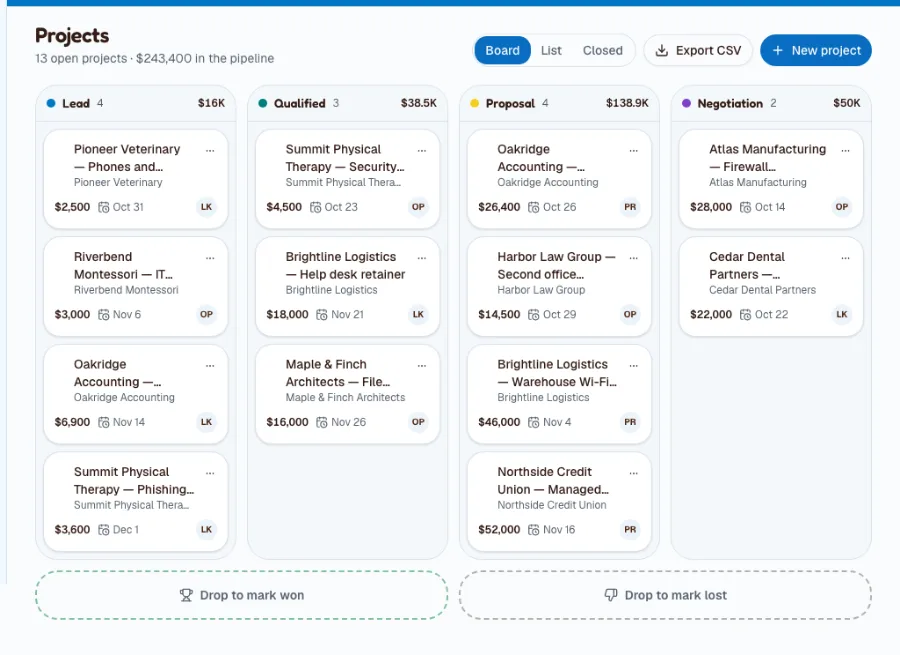
/try/consultingand sign in. Fifi opens Northbeam IT Consulting (sample) on the dashboard. - Click Projects. Look at the board: projects in each stage, with their values, each belonging to a client company.
- Click Companies and open Harbor Law Group. Look at its clients, its projects and its email history.
- Open Settings → Booking and look at the two booking types: a discovery call and an assessment walkthrough.
Nothing in a sample is sent to anyone. Click Start your real workspace on the banner when you're ready.
Create the workspace
- On Create your workspace, type your firm's name and click Continue.
- Under What kind of business is this?, choose Agency or consulting.
- Pick a color scheme and click Create workspace.
What you'll see: Clients, Companies, Projects and Calendar in the menu. Agency starts with Projects and pipeline, Email, Campaigns, Reports, Ask Fifi and Invoicing on.
Turn on what you need
Open Settings → Modules. Who can do it: owners and admins.
| Module | Set it | Why | Plan |
|---|---|---|---|
| Projects and pipeline | On | The pipeline and the board | Free |
| On | Email history on each client and company | Free | |
| Invoicing | On | Invoices, retainers by duplicating, payments | Pro |
| Reports | On | Pipeline and win-rate reports | Free |
| Campaigns | On | Newsletters to clients and prospects | Pro |
| Ask Fifi | On | Questions about your pipeline; draft emails | Add-on |
| Online booking | Turn on | A booking page for discovery calls | Pro |
| Forms and automations | Optional | A "request an assessment" form and tasks | Pro |
| API and webhooks | Optional | Connect other tools | Pro |
Ask Fifi shows Coming soon until its service is set up for all workspaces, and it needs a switch of its own in Settings → Workspace. It is a paid add-on after the beta.
Business details
- Open Settings → Workspace.
- Click Upload logo.
- Under Business address, type your address and click Save address. It appears on invoices and in campaign footers.
- Pick Colors and click Save colors.
See Set up your logo, colors and business details.
Your team and hours
- Open Settings → Members. Under Invite a teammate, type the Email, choose a Role and click Invite. Consultants who work projects can be Members. A partner or office manager is usually an Admin.
- Each person who takes discovery calls opens Settings → Booking → Your hours, chooses Your time zone, sets Weekly hours and clicks Save hours.
- Each person sets their own time zone in Settings → Profile (Timezone). Fifi uses it for "today" and "overdue" on their tasks.
See Set up your team.
Clients, companies and projects
In an agency workspace, a company is who you bill, a client is a person at it, and a project belongs to a company. Add them in that order.
Add a company
- Click Companies, then New company.
- Type the Name. Add the Website or Email domain so email can find the company.
- Click Create company.
Add the people at it
- Click Clients, then New client.
- Fill in First name, Last name, Email, Phone, Job title and Company.
- Click Create client.
If the email address matches a company's domain, Fifi offers to link them.
Create a project
- Click Projects, then New project.
- Type a Project name, for example "Warehouse Wi-Fi project".
- Set Value (USD), Stage and Expected close.
- Choose the Company. Under Clients, click Add client to attach 1 to 20 people, then Done.
- Choose the Owner and click Create project.
What you'll see: the project on the board in its stage, with the company and value. Drag the card to another column to move it. Mark it Won or Lost when it closes. See the pipeline guide.
Let prospects book a discovery call
- Turn on Online booking in Settings → Modules.
- Open Settings → Booking and, under Booking types, click New booking type.
- Type a Name ("Discovery call"), set Length to 30 minutes and Free time after to 10 minutes.
- Under Where, type "Video call (link in the confirmation)" or your address.
- Under Who takes it, tick yourself and anyone else who does sales calls.
- Under Questions, click Add a question: "How many people work at your company?" and "What would you like help with?"
- Tick Taking bookings and click Create.
What you'll see: a page at /b/‹your-address›/‹type-address› to share on your site and in your email signature. Each booking adds the person as a client and puts the meeting on their timeline and your calendar. Leave Needs a seat off. A consultancy has no tables or tubs. See Online booking.
Pipeline and naming
The stage names never change. Give them your own meaning:
| Stage | What it means for your firm |
|---|---|
| Lead | Assessment requested: someone asked for a call or a quote |
| Qualified | Assessment under way: you've talked and scoped the work |
| Proposal | Proposal sent |
| Negotiation | Contract out for signature |
Name each project with the work and the company, for example "Cedar Dental: Microsoft 365 migration". Close it as Won or Lost. Fifi asks why a project was lost: Price, Timing, Competitor, No decision or Other.
Custom fields worth adding
Open Settings → Custom fields, choose a tab and click Add field. You can add 25 per record type on Pro and 5 on Free.
| Record | Label | Type | Why | Reminder |
|---|---|---|---|---|
| Company | Contract renewal date | Date | A task for the company's owner before it renews | Yes, 60 days before |
| Company | Service plan | Choice | Managed services, Project, Retainer | No |
| Company | Employees | Number | Size of the client | No |
| Company | Account manager | Text | Who owns the relationship | No |
| Project | Billing type | Choice | Fixed fee, Hourly or Retainer | No |
| Project | Hours estimated | Number | Scoping | No |
See Custom fields and reminders.
Tags to start with
In Settings → Tags, click New tag. The sample uses these.
- Managed services
- Project client
- Decision maker
- Security
- Microsoft 365
- Newsletter
Forms and automations to start with
If you want a request form for your website, turn on Forms and automations.
- Open Settings → Forms and click New form.
- Type a Name ("Request an assessment") and a Page address.
- Under Fields, set Company to required and Message to optional.
- Write a Thank-you message. Tick Taking submissions and save.
Then open Settings → Automations, click New automation and add these.
| When | Only if | Then |
|---|---|---|
| A form is submitted (your form) | Nothing | Create a task: "Call {{name}} about the assessment", assigned to the record's owner, due in 1 day |
| A project is won | Nothing | Create a task: "Send {{name}} the kickoff plan", due in 2 days |
Automations create tasks. They never email clients. See Forms and Automations.
Bring in your customers
Import companies first so clients link to them by email domain.
- Export a CSV of companies. Columns Fifi understands: Name, Email domain, Industry, Phone, Address and Notes.
- Open Companies and click Import, choose your file, match the columns, click Preview import and import.
- Export a CSV of the people. Columns: First name, Last name, Email, Phone, Address, Job title, Lead status, Source, and any custom fields you made.
- Open Clients and click Import. Under 1. Choose a file, pick the “Contacts” option, choose your file and click Continue. Match the columns and import.
Clients whose email domain matches a company are linked to it. See Import, export and Trash and Bring in your existing customers.
Email and texting
- Open Settings → Email and click Connect Gmail on the Gmail card. Outlook shows Coming soon until Fifi's Microsoft connection is set up.
- Wait a few minutes. The last 90 days of email with your clients and companies appear on their pages and in your Inbox.
Fifi keeps only email with people and companies you have in Fifi, and never email between teammates. Texting isn't on by default for agencies. Turn it on in Settings → Modules if you want it, and it will show Coming soon until Fifi's texting service is on. See Connecting your email.
Invoicing for this business
Invoicing is on. Retainers and project invoices are the common cases.
- Open Settings → Invoicing and set Prefix, Next number, Default terms, Tax name and Tax rate (%). Ask your accountant whether your services are taxable where you work.
- Open a project and use Invoice, or open Invoices and click New invoice.
- Add lines. Hours can have decimals: 6.5 hours at $140.00 is $910.00.
- Issue it and send it from Fifi, or mark it as sent.
- Next month, open last month's invoice and use Duplicate for a retainer.
Fifi doesn't create recurring invoices, so a retainer is a duplicate you issue each month. See Choose how you'll invoice and Create and send your first invoice.
Your first campaign
Send a short, useful note to clients and prospects with the Newsletter tag. Subject: "10 things to check before year end". You need your business address saved and a mailbox connected.
- Open Marketing and click New campaign.
- Choose clients with the Newsletter tag.
- Write it, or ask Ask Fifi for a draft once it's available.
- Send a test, then send.
See Campaigns and Send your first campaign.
Reports and the dashboard
Pin these three from Reports:
- Pipeline by stage: what is open and what it's worth.
- Won projects by month: what closed.
- Projects by owner: who has what.
Ask Fifi's first questions for an agency workspace are "Which open projects close this quarter?", "How many projects did we win this month, and what were they worth?" and "Who has the most overdue tasks?" See Know your numbers.
Your first week
- To do: Your logo and business address are saved.
- To do: Your companies and clients are imported.
- To do: Every open project is on the board in the right stage.
- To do: A discovery-call booking type is live and on your website.
- To do: Your mailbox shows Up to date.
- To do: A company has a renewal date with a reminder.
- To do: You issued an invoice from a project.
- To do: You duplicated an invoice for a retainer.
- To do: Three reports are pinned.
- To do: You sent one campaign to a small list.
What Fifi doesn't do for this business yet
- Recurring invoices. A retainer is a duplicate of last month's invoice.
- Time tracking. Type the hours on the invoice line.
- Proposals and contracts. Fifi doesn't write or sign them. Keep them where you do now and move the project's stage when they are sent and signed.
- Your own stage names. The four stages never change. Use the project's name and your custom fields to say more.
- More than one currency. Invoices are in US dollars.
Troubleshooting and related
| What you see | Why | What to do |
|---|---|---|
| "Add at least one contact (up to 20)." | A project needs people on it | Click Add client |
| A client isn't linked to a company | Their email domain doesn't match | Link them by hand, or add the company's email domain |
| Nobody can book a discovery call | No one has saved their hours | Each person saves Your hours |
| Ask Fifi says Coming soon | Fifi's AI service isn't set up yet | Use the reports; check back later |
Still stuck?
Contact Fifi support with your workspace name, what you clicked and the exact message you saw. The troubleshooting guide covers the common ones.
Related: the pipeline guide, the guide to clients, companies and tags, Online booking, Invoices, Ask Fifi.
Next: Choose how you'll invoice, then Know your numbers.
Something out of date? Tell us.