
Set up a dog grooming business
About 40 minutes · For owners · Needs Business · Last checked in v0.61.0, Oct 2026
This guide sets up Fifi for a grooming salon: a dog groomer, a mobile groomer or a shop with several groomers. You end with groomers' hours, booking types people can book online, tables and tubs on a floor plan, clients with their dogs, repeat visits, a new-client form and a first invoice. Your workspace calls people Clients and keeps the name Deals for sales. If you also board animals, read Set up a pet boarding business next. This guide doesn't cover boarding, which is its own guide.
Is this the right guide?
- Business type: Pet services. It fits groomers, daycares and trainers who book by appointment.
- At the end you'll have: online booking pages, groomers with hours, tables and tubs, your clients and their dogs, and a form for new clients.
- Time: about 40 minutes, not counting your client file.
- Plan: everything here works on Pro, except Texting, which is on Business. During the beta every workspace has every module. See Modules, business types and plans.
New to Fifi? Do Your first hour with Fifi first. This guide repeats nothing from it.
Start with the sample
Look at a finished grooming salon for five minutes before you build yours.
- Go to
/try/groomingand sign in. Fifi opens Bubbles & Bows Grooming (sample) on the week calendar, with three groomers' days filled in. - On the calendar, click Floor. You see the salon's floor plan with four tables, two tubs and a dryer, and who is at each one.
- Open Settings → Booking. Look at the four booking types, each with its length and the groomers who take it.
- Open Clients, then Megan Ross. Under Pets, open her dog Biscuit and look at the notes and the vaccinations section.
- Back on Megan's page, look at Activity: Biscuit's before and after pictures are on her timeline (they show where Fifi's file storage is set up). The pictures are drawn by Fifi and marked "Sample".
Nothing in a sample is sent to anyone. Click Start your real workspace on the banner when you're ready.
Create the workspace
- Sign in and, on Create your workspace, type your salon's name and click Continue.
- Under What kind of business is this?, choose Pet services.
- Pick a color scheme and click Create workspace.
What you'll see: a menu with Clients, Pets, Boarding and Calendar. Pet services starts with these modules on: Email, Campaigns, Reports, Online booking, Forms and automations, Texting, Pets, Boarding and Invoicing. The next section says which to keep.
Turn on what you need
Open Settings → Modules. Who can do it: owners and admins.
| Module | Set it | Why | Plan |
|---|---|---|---|
| Online booking | On | Booking pages, groomers' hours, tables and tubs | Pro |
| Pets | On | A record for each dog with vaccinations | Pro |
| Forms and automations | On | A new-client form and tasks that run by themselves | Pro |
| Invoicing | On | Bill a visit and record payments | Pro |
| On | Conversations on each client's page | Free | |
| Campaigns | On | Newsletters and win-back emails | Pro |
| Reports | On | Dashboard reports | Free |
| Texting | On, when it's not Coming soon | Texts to clients and reminders by text | Business |
| Boarding | Off, if you don't board | Hides the kennel pages. Nothing is deleted. | Pro |
| Ask Fifi | Optional | Ask questions about your numbers; draft emails | Add-on |
Pro allows 5 booking types and Business allows 20. Four types (full groom, bath and brush, nail trim, puppy's first groom) fit on Pro.
Business details
- Open Settings → Workspace.
- Under Logo, click Upload logo.
- Under Business address, type your salon's address and click Save address. It appears on invoices and in campaign footers.
- Under Colors, pick a scheme and click Save colors. Your booking pages use it.
There is more on the look of your pages in Set up your logo, colors and business details.
Your team and hours
- Open Settings → Members.
- Under Invite a teammate, type each groomer's Email, choose a Role and click Invite. A groomer who only works the calendar can be a Member. The front desk can be a Member too. An office manager is usually an Admin.
- Ask each groomer to sign in and open Settings → Booking → Your hours.
- Each groomer chooses Your time zone, sets Weekly hours (up to 6 ranges a day, for example 8:00 to 12:00 and 1:00 to 4:00), adds Days off with Add days off, and clicks Save hours.
What you'll see: nobody can be booked until they save their hours. A booking type shows "Not bookable until they set their hours" with their names. Hours are in each person's own time zone. See Set up your team.
Booking types, tables and the salon floor plan
This is the heart of a grooming salon in Fifi. A booking type is a service. A seat is the table or tub the dog is on. A floor plan is a drawing of the salon that shows who is where.
Create your booking types
- Open Settings → Booking and, under Booking types, click New booking type.
- Fill in Name, Description and Page address.
- Choose Length (15 minutes to 4 hours) and Free time after. Free time after is your clean-up time between dogs.
- Leave How far ahead people can book at 60 days and Minimum notice at 2 hours, or change them.
- Under Who takes it, tick the groomers who do this service.
- Under Questions, set Phone number to required and click Add a question for "Your dog's name and breed" (required) and "Anything we should know (matting, nerves, allergies)?"
- Tick Needs a seat (see below), then Taking bookings, and click Create.
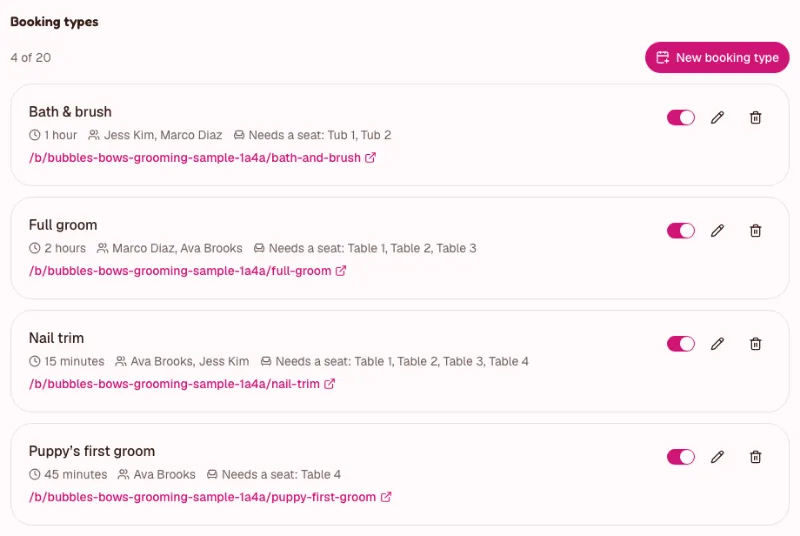
The sample uses these four. Start with them and change the lengths to fit your dogs.
| Booking type | Length | Free time after | Who takes it | Seats it uses |
|---|---|---|---|---|
| Full groom | 2 hours | 15 minutes | Senior groomers | Tables 1 to 3 |
| Bath & brush | 1 hour | 10 minutes | Bathers | Tubs |
| Nail trim | 15 minutes | none | Anyone | Any table |
| Puppy's first groom | 45 minutes | 15 minutes | Your gentlest groomer | The quiet table |
What you'll see: the booking page address /b/‹your-address› under Your booking page, listing the types. Share it on your website and social profiles.
Add tables and tubs as seats
- In Settings → Booking, find Seats and click Add a seat.
- Type a Name ("Table 1") and choose a Kind: Table, Tub, Chair, Dryer or Station.
- Add the rest: Table 2, Table 3, a quiet Table 4, Tub 1, Tub 2 and a Dryer.
- Edit each booking type and tick the seats it can use. A time is open only while one of its seats is free too.
Visitors never see seats. Fifi gives each booking the first free seat, and holds it for the booking's time plus the type's free time before and after.
Draw the salon
- Open Settings → Floor plans and click Add a floor plan.
- Name it ("Salon") and set Columns and Rows. Click Add and open the editor.
- Under Seats, click Place next to each table and tub.
- Draw the room with Wall, Door and Area (for "Grooming" and "Bath and dry"). Drag things into place.
- Click Save.
What you'll see: Calendar → Floor shows each seat and who is in it right now. You can draw on a tablet or a computer, but not on a phone. See Boarding and pets.
Clients and their dogs
- Open Clients, then a client.
- Under Pets, click Add pet, fill in Name, Species, Breed, Size and Birth date, and put coat and temperament in Notes.
- Open the dog's page and, under Vaccinations, type the vaccine and its expiry date, then click Add.
What you'll see: an Expired or Expires soon badge on the dog. Fifi doesn't email clients about vaccinations and doesn't stop a booking, so make a rule for your desk (see automations below).
Before and after pictures. When a dog arrives matted or leaves looking its best, take a picture: on the client's page choose Photos in the Activity box, tap Take photo or Choose photos, pick the dog under About (optional), and add a caption such as "Before: mats behind the ears". The pictures stay on the client's timeline for the next groom. See Photos on timelines.
Repeat every 6 weeks
Most grooming clients come back on a schedule. Book the first visit and let Fifi book the rest.
- Click Calendar, then Add, then Book an appointment.
- Choose the Booking type, the Client, Who and the time.
- Under Repeat, choose Every 6 weeks. Choose how it ends.
- Check the preview of the first visits, then click Book appointment.
What you'll see: the first visit now and the next visits booked within moments. Visits Fifi can't book (a groomer's day off) become a task. See Online booking.
Pipeline and naming
A grooming salon usually doesn't need Deals, so it isn't on. Leave it off unless you sell packages, memberships or training programs. If you turn it on in Settings → Modules, the four stages never change. Here is what they can mean:
| Stage | Meaning for a salon |
|---|---|
| Lead | Someone asked about a package or program |
| Qualified | You know their dog and what they want |
| Proposal | You sent a price |
| Negotiation | They are deciding |
Name each deal with the client and the offer, for example "Ross, Biscuit: 6-visit package".
Custom fields worth adding
Custom fields go on clients, companies and deals, not on pets. Open Settings → Custom fields, choose the Clients tab and click Add field. The Free plan allows 5 fields per record type; Pro allows 25.
| Record | Label | Type | Why | Reminder |
|---|---|---|---|---|
| Client | Preferred groomer | Choice | Book the same person each time | No |
| Client | Pickup person | Text | Who may collect the dog | No |
| Client | Vet clinic | Text | Who to call in an emergency | No |
| Client | Vaccination records due | Date | A task for the client's owner before the date | Yes, 14 days before |
| Client | Dogs from old system | Long text | Holds dog names from your import until you add Pets | No |
Details are in Custom fields and reminders.
Tags to start with
Open Settings → Tags and use New tag to add a few. The sample uses these.
- VIP
- New client
- Senior dog
- Matting-prone
- Anxious
- Newsletter
Forms and automations to start with
A new-client form
- Open Settings → Forms and click New form.
- Type a Name ("New client intake") and a Page address.
- Under Fields, set Phone to required. Click Add a field for "Dog's name", "Breed and age" and a checkbox "Vaccinations are up to date".
- Write a Thank-you message.
- Under Add a tag, choose "New client". Tick Taking submissions and save.
What you'll see: a page at /f/‹your-workspace›/‹form› you can share or embed. Each submission adds the client and puts their answers on the timeline. See Forms.
Two automations
Open Settings → Automations and click New automation.
| When | Only if | Then |
|---|---|---|
| A form is submitted (your intake form) | Nothing | Create a task: "Welcome {{name}} and book their first groom", assigned to the record's owner, due in 1 day |
| A booking is confirmed | Client has tag: New client | Create a task: "Check {{name}}'s vaccination records", due in 1 day |
Automations create tasks for your team. They never email clients. See Automations.
Bring in your customers
- Export your clients from your old system as a CSV file. Columns Fifi understands: First name, Last name, Email, Phone, Address, Job title, Lead status, Source, and your custom fields.
- Put each client's dogs in the "Dogs from old system" column. Pets can't be imported, so you will add them by hand.
- Open Clients and click Import.
- Under 1. Choose a file, pick the “Contacts” option, choose your file and click Continue. It is called “Contacts” in every workspace.
- Match the columns, choose Skip it (keep what's in Fifi) for duplicates, and click Preview import. Then import.
More is in Import, export and Trash and Bring in your existing customers.
Email and texting
- Open Settings → Email and, on the Gmail card, click Connect Gmail. Allow both permissions. Outlook shows Coming soon until Fifi's Microsoft connection is set up.
- Booking confirmations and reminders go out by email without anything else to set up.
- Texting is on Business. If Settings → Modules lists Texting under Coming soon, it isn't available yet. When it is, open Settings → Texting and click Get a number. A new number needs Fifi's approval before it can send.
Without texting, clients still get a confirmation and a reminder about 24 hours before by email. See Connecting your email and Texting.
Invoicing for this business
Invoicing is on. Set it up once and bill from the visit.
- Open Settings → Invoicing. Set Prefix, Next number, Default terms (many salons choose Due on receipt), Tax name and Tax rate (%).
- After a groom, open the visit on the calendar and click Invoice. Fifi fills in the client and the service.
- Type the price, check the tax, and issue it.
- When the client pays at the counter, record the payment on the invoice.
The next time you invoice that service, Fifi suggests the last price you charged. There is no price list yet. See Choose how you'll invoice and Create and send your first invoice.
Your first campaign
Send a short email to clients who haven't visited in a while. You need a connected mailbox and your business address saved.
- Open Marketing, click New campaign, and choose clients with the Newsletter tag.
- Write two or three sentences and a booking link.
- Send a test to yourself, then send.
With Ask Fifi on, you can ask for "Win back clients who haven't visited in 60 days" and review the draft. Ask Fifi shows Coming soon until its service is set up. See Campaigns and Send your first campaign.
Reports and the dashboard
Pin these three from Reports to your dashboard:
- New clients by source: where new dogs come from.
- Activities by type per week: how busy the front desk is.
- Overdue tasks by assignee: follow-ups that slipped.
Ask Fifi's first questions for a pet services workspace are "How many new clients did we add this month, by source?" and "How many meetings did we log each week this month?" See Know your numbers.
Your first week
- To do: Every groomer has saved their hours.
- To do: Four booking types are live, each with seats.
- To do: The salon floor plan shows on Calendar → Floor.
- To do: Your clients and their dogs are in, with vaccination dates.
- To do: The booking page link is on your website.
- To do: The new-client form is live and tested with your own email.
- To do: You booked one repeating client every 6 weeks.
- To do: You added a before and after picture to a client's timeline.
- To do: You issued one invoice from a visit.
- To do: Your mailbox is connected.
- To do: You sent one campaign to a small list.
- To do: Three reports are pinned.
What Fifi doesn't do for this business yet
- Deposits and cards on file. Online booking takes no payment. You take payment at the counter and record it, or invoice afterwards.
- Vaccination rules. Fifi shows expiry badges but doesn't block a booking or email clients about expiring vaccines.
- A price list. Fifi suggests the last price you charged for a service. It doesn't keep a list of prices by breed or size.
- Recurring invoices. Duplicate last time's invoice for a package.
- Importing dogs. A CSV imports clients and companies, not pets.
- Pet photos on booking pages. Photos are private to your team.
- Sending a picture to a client. Timeline photos are for your team. Download one and send it from your own phone or email; Fifi doesn't text or email pictures yet.
Troubleshooting and related
| What you see | Why | What to do |
|---|---|---|
| "Not bookable until they set their hours" | A groomer hasn't saved hours | They open Settings → Booking → Your hours |
| No times are open | Hours, minimum notice, or no free seat | Check hours and that the type's seats are on |
| "No seats on: this type can't be booked." | All the type's seats are off | Switch a seat on in Settings → Booking → Seats |
| A seat can't be deleted | Upcoming visits use it | Change their seat first, or switch the seat off |
| Floor view is empty | No floor plan yet | Draw one in Settings → Floor plans |
Still stuck?
Contact Fifi support with your workspace name, what you clicked and the exact message you saw. The troubleshooting guide covers the common ones.
Related: Online booking, Boarding and pets, Forms, Automations, Invoices, Calendar.
Next: Choose how you'll invoice, then Send your first campaign. If you also board animals, read Set up a pet boarding business.
Something out of date? Tell us.