
Your data, privacy and how long Fifi keeps records
About 15 minutes · For owners · Last checked in v0.61.0, Oct 2026
Your customers' details are yours. This guide shows how to take a copy of everything, what happens when you delete something, which records Fifi keeps for a set time and why, who can see your data, and how to delete an account or a workspace. It describes what Fifi does. It is not legal, tax or accounting advice: ask your accountant or lawyer how long you must keep records.
Before you start
- Who can do it: owners for the full export and for deleting the workspace. Owners and admins for Trash. Everyone for their own sessions and account.
- Needs: nothing beyond the Free plan.
- Have ready: a place to keep a ZIP of spreadsheets, and a few minutes. An export holds your customers' details, so store it as carefully as the records themselves.
Steps
1. Take a copy of everything
- Open Settings → Workspace.
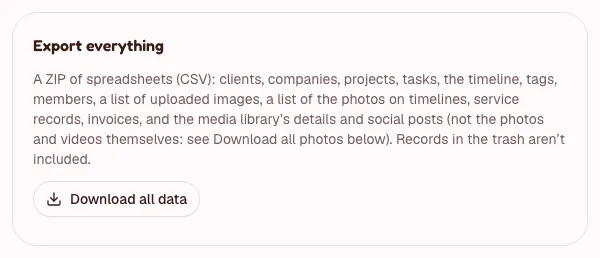
- Under Export everything, click Download all data.
What you'll see: your browser downloads a ZIP with one CSV file for each kind of record: members, tags, contacts, companies, deals, tasks and notes, the timeline, and the records of any modules you use, such as invoices, payments, service records, loads, pets and stays. A README.txt inside explains the files. Records in Trash aren't included, and the photos and videos in the media library and on customers' timelines are listed but not included (owners and admins can take the timeline photos out with Download all photos, just below). The list of files is in Import, export and Trash.
You can only export a few times an hour. Very large workspaces may get a ZIP marked incomplete; its README says which file was cut short.
Photos. Pictures on customers' timelines live in file storage, not in the export. Owners and admins click Download all photos (further down Settings → Workspace) and get an email with a link, valid for 24 hours, to a ZIP with a folder for each customer and a list of every picture. See Photos on timelines.
2. Export a single list
- Open Contacts, Companies or Deals and set the filters you want.
- Click Export CSV.
Anyone in the workspace can do this. Exports are recorded in the activity log. Reports, payments and form submissions have their own Export CSV buttons.
3. Use Trash
When you delete a contact, company, deal, saved report, pet, media item, social post, photo entry, or a draft service record, load or invoice, it goes to Settings → Trash for 30 days.
- Right after deleting, click Undo on the banner.
- Later, open Settings → Trash, find the item and click Restore. Owners and admins can restore almost everything; members can restore their own reports.
- After 30 days, a nightly job deletes the item for good, along with its timeline.
Tasks, task notes and timeline entries other than photo entries don't go to Trash. There's no "delete forever" button. Removing a single photo is the exception: it is final at once.
4. Know what Fifi keeps, and for how long
| What | How long | What it means |
|---|---|---|
| Deleted contacts, companies, deals and the rest | 30 days in Trash | Then purged. |
| Photos on timelines | With their entry: a photo removed one at a time is deleted at once; a deleted entry's photos wait 30 days in Trash, then are deleted | Photos are customer content that Fifi stores but doesn't look at. They go with their customer when the customer is deleted for good, and with the workspace when it is deleted. Pictures about a completed service record are not part of the 3 years record. |
| Completed or voided service records | At least 3 years after the service | Nobody can delete them before then. After that, owners and admins can. |
| Issued and void invoices | At least 7 years after they were issued | Nobody can delete them before then. After that, owners and admins can. A draft can be deleted at any time. |
| A deleted workspace | 30 days to change your mind | Then every record in it is deleted for good. |
Fifi never deletes old service records or invoices by itself. The periods in the table are the least Fifi keeps them. The rules for your business differ by state and country, so check yours, and keep your own exports for as long as you need.
What deleting a customer does: the customer goes to Trash, but their invoices and service records stay, with the name and address they were written for. They aren't deleted until their period is over.
What deleting the workspace does: it deletes service records and invoices too. The delete dialog tells you how many there are. Export first if you may need them. Deleted data can stay in Fifi's encrypted backups for up to about 6 months, until they expire; they're used only to restore Fifi.
5. Know who can see your records
- Your team sees what their role allows. See Roles and permissions and Set up your team.
- Other workspaces never see yours. Fifi checks this in the app and again in the database.
- Fifi's operators can see a workspace's name, its owner's email, its member count, status and Ask Fifi usage totals, to run the service. They can't see your contacts, deals or email in the operator console, and every operator action is logged.
- Your mailbox: Fifi keeps only the conversations with your contacts and companies, never email among your team. See Connect your email.
- Anthropic sees workspace data only when you turn Ask Fifi on, and only what Ask Fifi lists; it never sees email bodies, subjects, notes or files. It also sees media a member picks for AI captions while AI for marketing is on, and the scrubbed text of support chats unless you turn the support assistant off. It never sees photos on timelines.
The full picture is in Security overview. Fifi never sells personal information.
6. Review your sessions
- Open Settings → Sessions. Each device where you are signed in is listed, and the one you are using is marked.
- Click Revoke on any you don't recognize.
- To end every other session at once, click Sign out of all other sessions. To sign out here too, click Sign out on the device you are using.
7. Delete your account or your workspace
To delete the workspace (owners):
- In Settings → Workspace, find Delete this workspace and click Delete workspace….
- Type the workspace's name to confirm.
Everyone loses access at once. For 30 days any owner can click Cancel deletion on the onboarding page; after that everything in it is deleted for good.
To delete your own account:
- Open Settings → Profile and find Delete your account.
- Click Delete my account…, read what happens to each of your workspaces, and type your email address to confirm.
If you're the only member of a workspace, it's scheduled for deletion. If others are in it, you leave and the records you worked on stay with the team. If you are the only owner of a workspace that has other people in it, deleting is blocked until you make someone else an owner. See Your account.
What you'll see
- A downloaded ZIP you can open in a spreadsheet.
- Settings → Trash listing what you can still restore, with who deleted it and when.
- Wording like "Kept until ‹date›" instead of Delete on an invoice or service record that is still inside its period.
Check your work
- To do: You downloaded a full export and stored it safely.
- To do: You know how to restore a deleted customer.
- To do: You know that deleting a customer does not delete their invoices or service records.
- To do: You have talked to your accountant or lawyer about how long your business must keep records.
- To do: Nobody has access who shouldn't. Check Settings → Members.
Troubleshooting
| What you see | Why | What to do |
|---|---|---|
| I can't find Export everything or Delete. | They are for owners only. | Ask an owner. |
| "Kept until ‹date›" instead of Delete. | The record is inside its keeping period. | Nothing; it can be deleted after that date. |
| A deleted item isn't in Trash. | It is a task, note or timeline entry, or it was purged. | These aren't restorable. |
| I deleted a workspace by mistake. | You are inside the grace period. | Sign in and click Cancel deletion on the onboarding page. |
| The Delete button for my account is greyed out. | You are the only owner of a workspace that has other members. | Make someone else an owner first. |
Related
Something out of date? Tell us.