
Bring in your existing customers
About 25 minutes · For owners and admins · Last checked in v0.61.0, Oct 2026
If your customers live in a spreadsheet, another CRM or your accounting system, you can move them into Fifi in one sitting with a CSV file. This guide prepares the file, imports it with a preview, and checks the result. It covers contacts and companies. It doesn't bring in deals, notes, invoices or email history; deals are added in Fifi, and email arrives when you connect your email.
Your workspace may call contacts "Clients" or "Customers". This guide says contacts, and the screens use your own word.
Before you start
- Who can do it: owners and admins. Members can't import.
- Needs: nothing beyond the Free plan.
- Have ready: a spreadsheet of your customers with a header row (the first row names each column), or one of the templates below. A file can have up to 5 MB and 20,000 rows. Split a bigger one.
Download a template if you are starting from nothing:
- Contacts template: First name, Last name, Email, Phone, Address, Job title, Lead status, Source and one custom field.
- Companies template: Name, Email domain, Industry, Phone, Address, Notes and one custom field.
The people and companies in the templates are made up. Delete the example rows before you add yours.
Steps
1. Prepare the sheet
- Open your spreadsheet. Make sure the first row has column names and there is one customer on each row below it.
- Rename columns to match Fifi's if you like. Fifi matches common names for you ("first name", "e-mail", "mobile") and lets you match the rest by hand.
- Fill the columns Fifi needs. Contacts need First name and Last name. Companies need Name. Everything else is optional.
- Save or export it as CSV (in Excel, "CSV UTF-8"). Commas separate the columns.
What each column does:
| Column | What goes in it |
|---|---|
| First name, Last name (contacts) | Required. A row without both is left out. |
| One address. It is how Fifi spots duplicates. | |
| Phone, Address | Free text. An address can have several lines inside quotes. |
| Job title | Free text. |
| Lead status | One of new, contacted, qualified or unqualified. Empty means new. |
| Source | One of inbound, referral, outbound, event, import or other. Empty means import. |
| Name (companies) | Required. |
| Email domain (companies) | The company's web or email domain, such as acme.com. Fifi links contacts to a company when their email ends in it. A column called "website" fills it. |
| Industry, Notes (companies) | Free text. |
2. Add a custom field for anything else
The importer has no column for tags, deal values or your own details. For your own details, make a custom field and give its column the same name.
- Open Settings → Custom fields, pick the tab for contacts or companies, and click Add field.
- Type a Label that matches the column heading exactly, for example
Account number, and pick a Type. - Save it. The importer matches a column to the field by its label or its key.
Choices match the option's name, a checkbox takes yes or no, and a date can be 2026-03-15 or 3/15/2026. The rules are in Custom fields and reminders.
Tip
Tags aren't imported. If you want to group customers, such as "Wholesale" or "Vets", add a Choice custom field called Customer type and put the group in that column. You can filter lists by it. Tag a few customers by hand afterwards if you want tags.
3. Import the file
- Open /import: click Contacts (or Companies) in the menu, then Import.
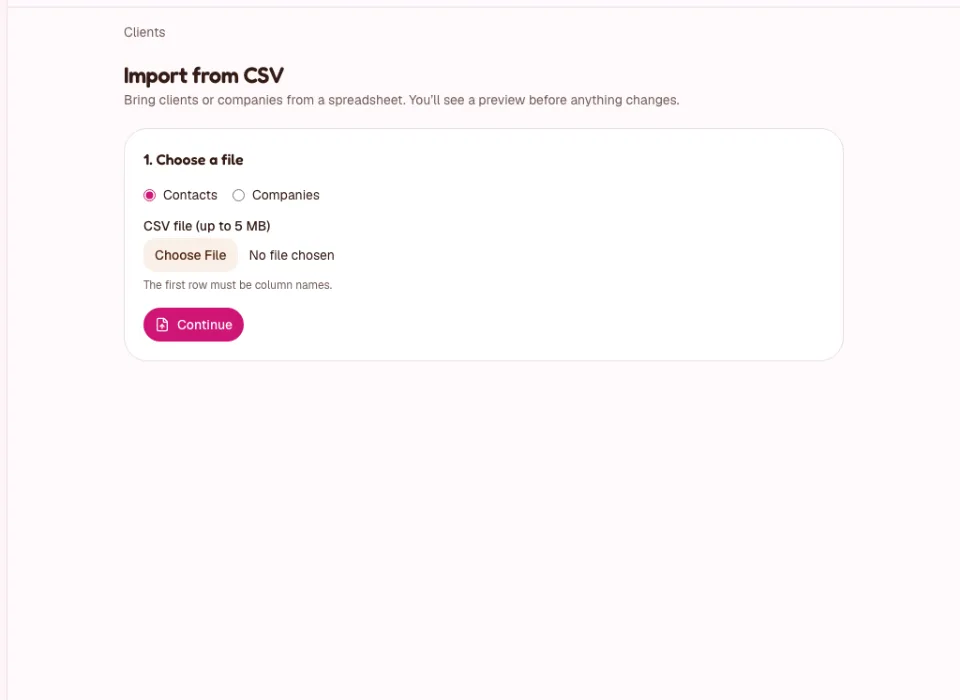
- Under 1. Choose a file, pick Contacts or Companies, choose your file, and click Continue.
- Under 2. Match the columns, check each Fifi field shows the right column from your file, or — Don’t import —. Required fields are marked with an asterisk. Any custom fields appear under Custom fields.
- Choose what happens when a customer already exists (same email for contacts, same domain for companies): Skip it (keep what’s in Fifi) or Update it with the file’s values. Update only changes the columns you mapped and only where the file has a value.
- Click Preview import.
- Under 3. Preview, read the counts (new, to update, skipped, with problems) and the first 10 rows. Open Rows with problems to see what is wrong and on which row.
- If the preview looks right, click Import with the number shown on the button.
What you'll see: Import complete, with how many were created, updated and skipped and any rows left out for problems. Click View contacts to see them. Nothing changes until you click Import, and if you change a setting after previewing, Fifi asks you to preview again.
Good to know: imported contacts are owned by the person who imported them. Each one gets a "was added" entry on its timeline, and imports don't start "contact created" automations. If you connect email afterwards, Fifi searches the last 90 days of mail for each imported address. A large import is searched gradually over several hours.
4. Fix the rows that failed
Rows with problems aren't imported. The rest are. Fix the file and import again with Skip it chosen, so customers already in Fifi are left alone.
| What the preview says | What it means | What to do |
|---|---|---|
| "First name is not valid" or "Last name is not valid" | The cell is empty or too long. | Fill it in. |
| "Email is not valid" | Not an email address. | Correct it, or empty the cell. |
| "Lead status is not valid" or "Source is not valid" | Not one of the words in the table. | Use one of those words. |
| A custom field name with "Choose one of the options" or "Enter a number" | The value doesn't fit the field. | Match an option's name, or use plain digits. |
Action shows skip | The email or domain is already in Fifi, or earlier in the file. | Nothing, unless you meant to update. |
5. Moving from another system
Export your customers to a spreadsheet from that system (look for Export, Download or Report as CSV in its help). Then follow the same steps. Fifi doesn't need a particular format, only a header row. For accounting systems like QuickBooks, export the customer list and map Name to company or to first and last name.
What you'll see
- The contacts list shows the new customers, with their company where the email matched one.
- Import complete gives the counts. The activity log records the import.
- If a contact's email domain matches a company's domain in Fifi, the contact is linked to it.
Check your work
- To do: The counts on Import complete match what you expected.
- To do: Open five customers at random and compare them with your sheet.
- To do: Phone numbers and addresses look right (open one with a multi-line address).
- To do: Your custom field has a value on the customers that had one.
- To do: Searching a name you know finds one customer, not two.
Troubleshooting
| What you see | Why | What to do |
|---|---|---|
| "Only admins and owners can import. Ask one of them, or send them your file." | You are a member. | Send the file to an admin. |
| "That file is over 5 MB. Split it into smaller files." | The file is too big. | Split it. |
| "Only the first 20,000 rows are imported…" | The file has more rows. | Import the rest as a second file. |
| Every column is in the first field. | The file uses semicolons or tabs. | Save as comma-separated CSV. |
| Names show odd characters. | The file isn't UTF-8. | Save as "CSV UTF-8". |
| "You changed something since this preview. Preview again before importing." | You changed a setting after the preview. | Click Preview import again. |
Undo. An import can't be undone as a whole. To remove customers you imported by mistake, delete them one by one; deleted records stay in Settings → Trash for 30 days and an owner or admin can restore them. Import a small file first if you are unsure.
Related
- Import, export and Trash: limits, exports and restoring.
- Contacts, companies and tags
- Custom fields and reminders
- Send your first campaign
Something out of date? Tell us.