
Photos on timelines
Last checked in v0.63.0, Oct 2026
Add pictures to a customer's timeline: a dog before and after a groom, an ant trail along a kitchen baseboard and the baseboard after the visit, a damaged pallet at the dock. Teammates take them with a phone's camera, pick them from a phone's photo library, or choose them on a computer. Each batch is one entry on the timeline, with its thumbnails and an optional caption, and Fifi keeps the pictures private to your workspace.
Heads up
Photograph your customers' premises, pets and work. Don't photograph people without their consent: the people in a picture haven't agreed to appear in it just because you added it. Fifi doesn't look at your pictures, so it can't warn you.
Photos work on contacts, companies and deals. They also work for a pet, a visit, a stay or a service record of a contact (see Say what a photo is about), so before and after pictures are possible. Each of those records has a Photos section above its Activity (a pet's, a visit's, a stay's and a service record's show the pictures about them): how many pictures there are, the 8 newest, View all and Add photos. They need your workspace's storage to be set up and, once plans are enforced, a plan with storage (Pro or Business). Viewing a photo never depends on your plan.
Who can do it:
| Task | Owner | Admin | Member |
|---|---|---|---|
| Add photos to a customer's timeline | Yes | Yes | Yes |
| Add more photos to an entry | Yes | Yes | Their own entries only |
| Edit a caption | Author only | Author only | Author only |
| Delete an entry (kept in Trash for 30 days) | Yes | Yes | Their own only |
| Restore a deleted entry from Trash | Yes | Yes | No |
| Remove one photo for good | Yes | Yes | Photos they added |
| Remove a photo on a completed service record | Yes | Yes | Photos they added, for 24 hours |
| Download all photos as a ZIP | Yes | Yes | No |
| See and download a photo | Yes | Yes | Yes |
Add photos from a phone
- Open the customer: a contact, a company or a deal.
- In the Activity box, choose Photos.
- Tap Take photo to use the camera, or Choose photos to pick from the photo library (you can pick several at once). One entry holds up to 10 photos.
- Wait while each picture is prepared. A picture is turned upright and made smaller on your phone first (to at most 2,048 pixels on its long side), and the place it was taken is left out. A small card for each one says Preparing…, then Ready.
- Optional: type a Caption (optional), up to 500 characters, such as "Before: matted coat". If the pictures were taken earlier, tap Change time and set when.
- Tap Post photos. Each picture shows its progress while it uploads, then Done.
What you'll see: one entry on the timeline, "Added 3 photos", with your name, the time, the caption and a row of thumbnails. Choose Remove on a picture's card to take it out before you post.
You can also start from the customer's Photos section: Add photos opens the same box with Choose photos ready.
If a picture fails, its card says why in words and offers Retry. A weak connection is the usual cause: Fifi tries twice by itself, then waits for you. Keep the page open until every card says Done; closing it stops the uploads that haven't finished.
Add photos from a computer
- Open the customer and choose Photos in the Activity box.
- Click Choose photos and pick files (up to 10), or drag them onto the box.
- Add a caption if you like, then click Post photos.
Take photo appears only on phones and tablets, where it opens the camera.
Say what a photo is about
A photo entry can be about one of the customer's own pets, visits, stays or service records, so you can find it again where it matters. There are two ways to say it:
- From the customer. In the Activity box, pick it from About (optional). It lists the customer's pets, their visits from the last 30 days and the next 7, their current and recent stays and their service records, only for modules that are on. Choosing nothing is fine.
- From the record. On a pet's page or a service record, choose Add photos in its Photos section. On a visit, open it on the calendar, choose Photos, then Add photos. On a stay, open its details and choose Add photos. A box opens that says what the pictures are about.
The entry still lives on the customer's timeline, so the customer's gallery shows it with the rest.
- A pet: the pet's page shows the pictures about that pet.
- A visit or a stay: the details show the pictures about it. A cancelled visit or stay keeps its pictures but can't get new ones.
- A service record: the record page shows the pictures about it, for drafts and completed records, not for voided ones.
An entry's "about" is chosen when it is made. A pet, visit, stay or record that is deleted later leaves its pictures on the customer's timeline, labelled "a deleted pet" and so on.
The matching module must be on: Pets, Boarding, Online booking or Service records. See Modules, business types and plans.
Before and after pictures
For a groomer or an applicator, two entries tell the story: add the before picture when the dog arrives or the technician starts, and the after picture when the work is done, both about the same pet or service record. A caption that starts with "Before:" or "After:" keeps them apart on the timeline and in the gallery. Take them from the same spot if you can.
On a completed service record, the person who added a picture can remove it for 24 hours; after that only an owner or admin can, because the record itself is kept for 3 years. Pictures follow their customer: they are not part of the kept record, and they go with the customer when the customer is purged. See Service records.
See, download and remove photos
- Open the customer (or a pet, or a service record). The Photos section above Activity shows how many pictures there are and the 8 newest.
- Choose View all to see every picture, newest first, 48 at a time. Choose Show more for the next ones.
- Click or tap a picture to open it larger, with its caption, who added it and when, and where it is in the set ("3 of 8").
- Move through the pictures. Use the arrow keys (Home and End go to the first and last) or swipe, or the buttons beside the picture. Esc closes it and puts you back where you were.
- Download one. Choose Download while a picture is open. A downloaded picture is named for its date and a few characters of its code, never the customer's name.
- Edit the caption. On the entry, open the menu (the "…" button) and choose Edit caption. Only the person who made the entry can.
- Delete an entry. Open the entry's menu and choose Delete photos, then confirm. The entry and its pictures stay in Trash for 30 days, listed in Settings → Trash as "3 photos, Before the groom" on the customer. An owner or admin chooses Restore while the customer is still there; if the customer is in Trash too, it says to restore the customer first. After that they are removed for good.
- Remove one picture. Open it, choose Remove and confirm: "Remove this photo? This can’t be undone." The picture is gone at once and can't be restored. Removing the last picture of an entry deletes the entry.
- On the dashboard. The recent activity lists new photos as one line, "Sam added 3 photos of Rex to Mia Chen", with no pictures.
If you delete a customer, their photos are hidden with them. Restore the customer from Trash and the photos come back.
What a photo can be
| Rule | What Fifi checks |
|---|---|
| Formats | JPEG, PNG or WebP, checked by what the file really is, not its name. GIF, SVG, HEIC, AVIF, PDF and animated pictures are refused |
| Size | Up to 5 MB a picture, at least 64 and at most 4,096 pixels each way |
| Photos in an entry | Up to 10 |
| Photos on one customer | Up to 1,000, the most Fifi keeps on one record |
| Caption | Up to 500 characters, shown as plain text |
| Hidden details | Where and when it was taken, the phone's model and every other hidden detail are removed. Only which way up a picture goes is kept |
Phones' cameras make big pictures, so your phone makes each one smaller before it is sent: a typical photo is a few hundred kilobytes by the time it arrives.
iPhone pictures (HEIC)
iPhones save pictures as HEIC by default. Safari on an iPhone or an iPad should turn them into JPEG for you when you choose them here, and Safari on a Mac can too. Other computer browsers usually can't, and the picture's card says: "This photo is in HEIC format, which this browser can’t convert. Open it in Photos or Preview, export it as JPEG and add that." Export a JPEG, or add the picture from your phone.
Storage and your plan
Photos are kept in Fifi's private file storage, not in your records, and count against your plan's Photo, media and document storage, together with the media library and loads' documents.
| Free | Pro | Business | |
|---|---|---|---|
| Photo, media and document storage | Not included | 10 GB | 50 GB |
Settings → Plan shows how much you have used, with a line "of which timeline photos". A picture counts its own size plus its thumbnail's. During the beta every workspace has the Business amount. When plans are enforced, Free can see photos but can't add them. A deleted entry's pictures count until they are removed for good, 30 days after it is deleted. When storage is full, adding a photo says "This workspace’s storage is full. Remove some photos or ask an owner about the plan." Remove photos you no longer need to make room. See Modules, business types and plans.
Who can see photos, and what Fifi does with them
- Only signed-in members of your workspace. A photo has no public link. Fifi shows it through a short-lived link that works for a few minutes, and only after checking that you are signed in and belong to the workspace.
- Fifi doesn't look at them. Photos are never analysed, described, sent to an AI, or put in Ask Fifi, search, reports, the API, webhooks, email or texts. Reports can count "Photo" entries by type and nothing more.
- Who added and removed each one is in the activity log. The log has no file names and no captions.
- Where they are kept. In the United States, in Fifi's storage provider's encrypted storage. See the Privacy Policy.
- Samples. A sample workspace shows made-up pictures drawn by Fifi, marked "Sample" across the bottom. You can't add photos in a sample; start your own workspace to add yours.
Download all your photos
Owners and admins can take every photo out as a ZIP.
- Open Settings → Workspace.
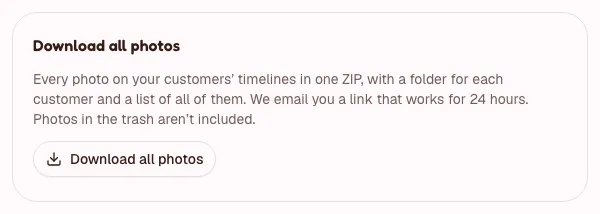
- In Download all photos, click Download all photos.
- Wait for an email with a link. It works for 24 hours, for you, signed in to Fifi.
What you'll get: a ZIP with a folder for each customer ("Mia Chen - 4f3a") holding that customer's pictures, named for the day they were added (in your time zone), their caption and a number, and a file called photos.csv that lists every picture: its file, the customer, what it is about, the caption, the type and size, who added it and when. Pictures in the Trash aren't included. You can ask 2 times a day for your workspace. A large workspace takes a while: roughly a minute for each gigabyte.
The workspace export from Settings → Workspace → Export everything (owners) lists the photos too, in timeline_photos.csv, but has no pictures in it. See Import, export and Trash.
Troubleshooting
- There's no Photos choice in the Activity box. Photos aren't set up on this server yet, your plan has no storage (Free, once plans are enforced), or this is a sample workspace. The words on screen say which.
- The Photos section says "Photos aren’t set up on this server yet.", "Photos need storage, which is on Pro and Business." or that this is a sample workspace. Pictures that are already there still show, but none can be added until that is changed. A section on a cancelled visit or stay, or a voided record, says it takes no more.
- The Photos section says "Couldn’t load photos. Try again." The connection dropped. Choose Try again; pictures already on the screen stay.
- The Add photos box won't close. It stays open while pictures are uploading, so none are lost, and closes as soon as they are done.
- There's no Take photo button. It is for phones and tablets. On a computer, use Choose photos.
- "That photo is too large (up to 5 MB and 4,096 pixels)." Pick a smaller picture, or take it again with your phone's normal setting.
- "Use a JPEG, PNG or WebP photo (not a GIF, animated image, SVG or PDF)." Export the picture as a JPEG or PNG and add that.
- "This entry already has 10 photos." Post what you have and start a new entry.
- "This customer already has 1,000 photos, the most Fifi keeps on one record." Remove pictures you no longer need.
- A picture says Failed. Check your connection and choose Retry. Pictures that are already Done stay on the entry.
- I closed the page before the uploads finished. The ones that finished are on the timeline; add the rest again. Fifi doesn't upload in the background.
- A picture looks sideways. Pictures from Fifi's own camera button and from a phone's library are turned upright before they are sent. If one still isn't, rotate it in your phone's photos and add it again.
- I can't remove a picture. Only its uploader, an owner or an admin can. On a completed service record, the uploader can for 24 hours, then only an owner or admin.
- A deleted entry's photos are gone. They come back only if an owner or admin restores the entry from Trash within 30 days. A picture removed one at a time can't be brought back.