
Set up a pet boarding business
About 40 minutes · For owners · Needs Business · Last checked in v0.61.0, Oct 2026
This guide sets up Fifi for a boarding kennel: dogs, cats or both, in kennels, runs, suites or condos. You end with your places and their nightly rates, a floor plan, your clients' pets and their vaccinations, your first booked stay on the kennel board, a request form and a stay turned into an invoice. Your workspace calls people Clients. This guide doesn't cover deposits or season pricing, which Fifi doesn't do. If you groom too, Set up a dog grooming business covers the tables, tubs and booking types in more depth.
Is this the right guide?
- Business type: Pet services, with Pets and Boarding on. It fits kennels, cat hotels, daycares with overnight stays and farm stalls.
- At the end you'll have: kennels with sizes and capacity, rates, a floor plan, pets with vaccination dates, a kennel board with stays, and a way to bill a stay.
- Time: about 40 minutes, not counting your client file.
- Plan: Boarding, Pets and Invoicing are on Pro. Texting is on Business. During the beta every workspace has every module. See Modules, business types and plans.
New to Fifi? Do Your first hour with Fifi first.
Start with the sample
Spend five minutes in a finished kennel.
- Go to
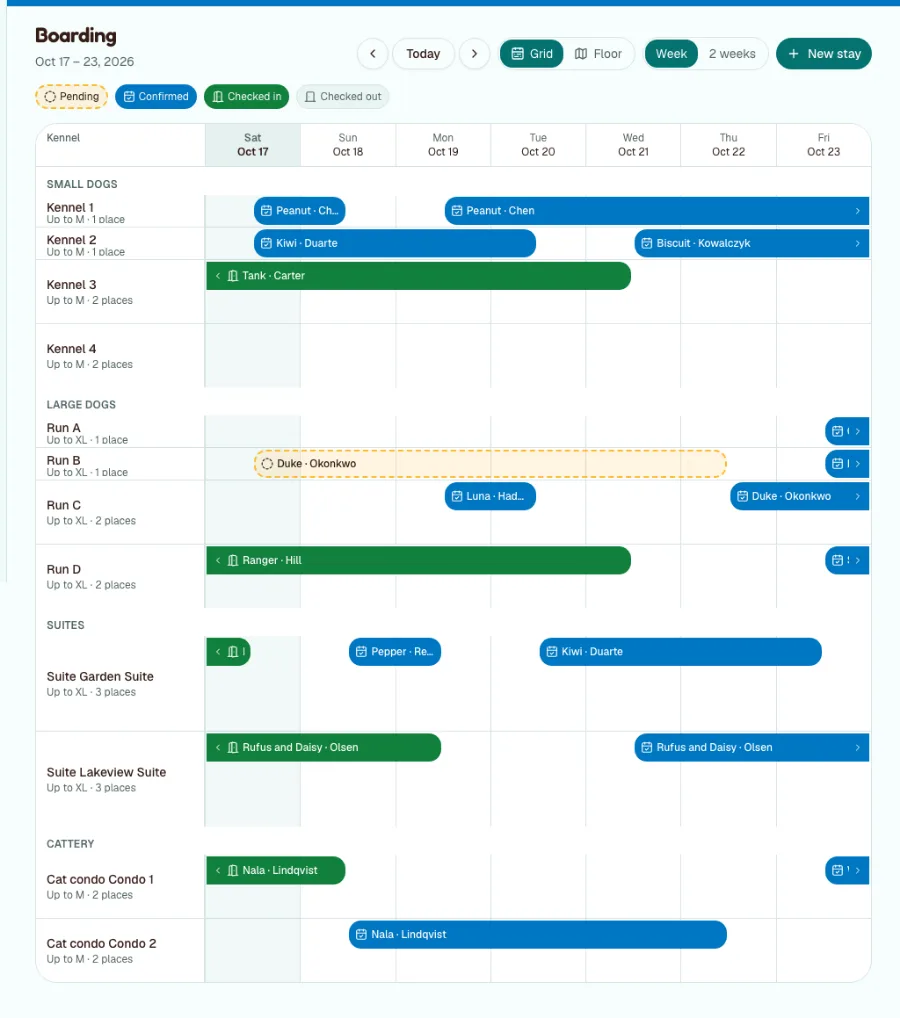
/try/boardingand sign in. Fifi opens Happy Tails Boarding (sample) on the kennel board, with six weeks of stays around today. - On the board, click Floor. Each kennel is a box on the plan. Click a free one to start a stay.
- Click any stay bar. The details show the pets, the dates and the Price, worked out from the kennel's rate.
- Open Settings → Boarding. Look at the kennels by area and the four rates under Rates.
- Open a client whose pet is checked in and look at Activity: a photo of the pet settling into its kennel is on the timeline (it shows where Fifi's file storage is set up).
Nothing in a sample is sent to anyone. Click Start your real workspace on the banner when you're ready.
Create the workspace
- On Create your workspace, type your kennel's name and click Continue.
- Under What kind of business is this?, choose Pet services.
- Pick a color scheme and click Create workspace.
What you'll see: the menu has Clients, Pets, Boarding and Calendar. Pet services starts with Email, Campaigns, Reports, Online booking, Forms and automations, Texting, Pets, Boarding and Invoicing on.
Turn on what you need
Open Settings → Modules. Who can do it: owners and admins.
| Module | Set it | Why | Plan |
|---|---|---|---|
| Pets | On | Every pet needs a record; Boarding needs it | Pro |
| Boarding | On | Kennels, stays, the kennel board and rates | Pro |
| Invoicing | On | Turn a stay into an invoice | Pro |
| Forms and automations | On | A boarding request form and a task for the desk | Pro |
| Online booking | On | Meet and greets and "bath before going home" | Pro |
| On | Conversations on each client's page | Free | |
| Campaigns | On | Holiday and newsletter emails | Pro |
| Reports | On | Dashboard reports | Free |
| Texting | On, when it's not Coming soon | Texts to owners while their pet is staying | Business |
| Ask Fifi | Optional | Questions about your numbers; draft emails | Add-on |
If you don't want public booking, you can leave Online booking off. Stays are booked by your team on the kennel board. You need it only for meet-and-greet bookings and for baths that use a tub.
Business details
- Open Settings → Workspace.
- Click Upload logo.
- Under Business address, type your address and click Save address. It shows on invoices and in campaign footers.
- Pick Colors and click Save colors.
- Open Settings → Profile and check your Timezone. Fifi counts nights in the time zone of the workspace's first owner, so this matters. A change of clocks never adds or removes a night.
See Set up your logo, colors and business details.
Your team and hours
- Open Settings → Members. Under Invite a teammate, type each person's Email, choose a Role and click Invite.
- Kennel attendants can be Members. Members can book, check in and check out stays. Only owners and admins change kennels, rates and floor plans.
- If you take bookings for meet and greets or baths, each person who does so opens Settings → Booking → Your hours, sets Weekly hours and clicks Save hours.
See Set up your team.
Kennels, rates, the floor plan and stays
Add your kennels
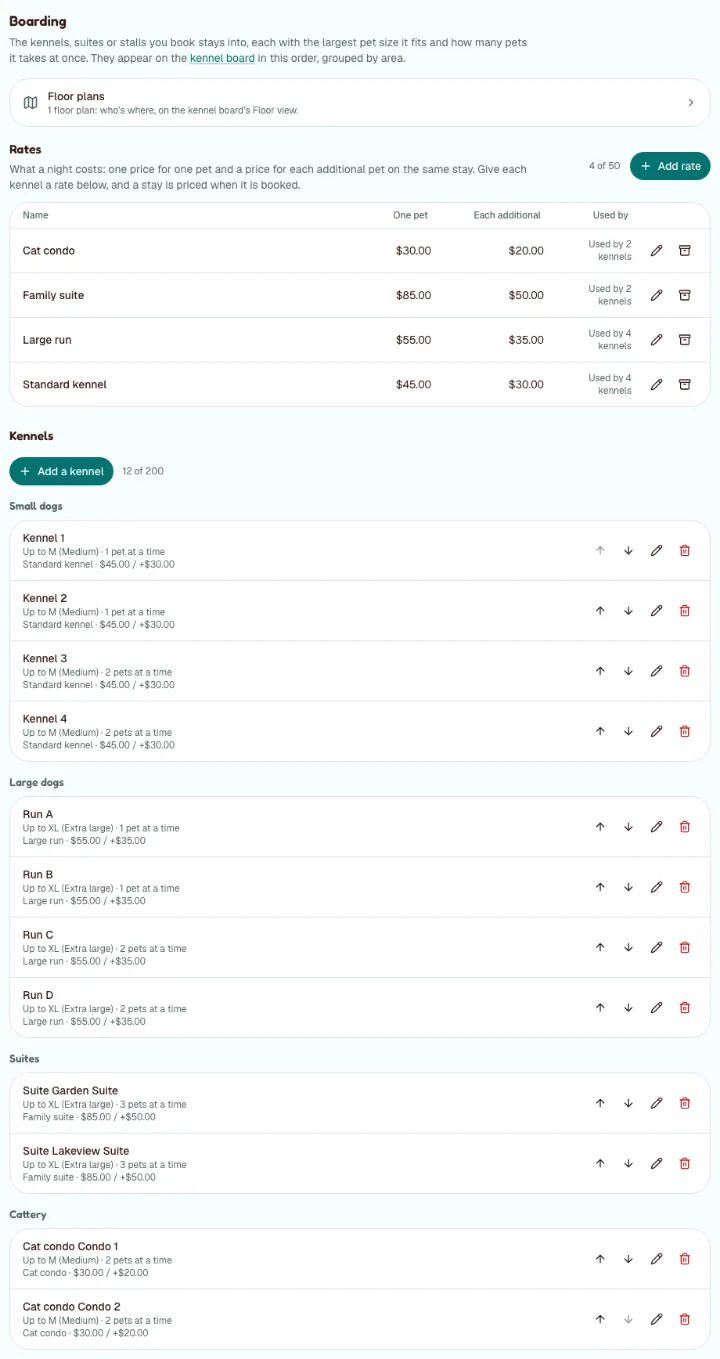
- Open Settings → Boarding and click Add a kennel.
- Type a Name ("Kennel 1", "Run A", "Garden Suite") and a Kind ("Kennel", "Run", "Suite", "Cat condo").
- Type an Area ("Small dogs", "Large dogs", "Suites", "Cattery"). The board groups kennels by area.
- Choose the Largest size it fits: S, M, L or XL. A bigger pet can't be booked in.
- Set Pets at once. It is 1 for a kennel and 2 or 3 for a family suite.
- Click Add.
The sample has four small-dog kennels, four large-dog runs, two suites that hold three pets and two cat condos. You can have up to 200. Untick Taking new stays to rest a kennel without deleting it.
Set your rates
A rate is what a night costs: one price for one pet, and a lower, equal or higher price for each additional pet on the same stay.
- Under Rates on the same page, click Add rate.
- Type a Name: "Standard kennel", "Large run", "Family suite", "Cat condo".
- Type One pet, per night and Each additional pet, per night, in dollars.
- Click Add rate.
- Edit each kennel and choose its Rate.
The sample's rates: Standard kennel $45.00 and $30.00, Large run $55.00 and $35.00, Family suite $85.00 and $50.00, Cat condo $30.00 and $20.00. Use your own prices.
What you'll see: a stay's price worked out as you type, and kept on the stay when you save. Changing a rate later never changes a stay already booked. Fifi counts the midnights between check-in day and check-out day, at least 1:
| Stay | The sum |
|---|---|
| One dog, Standard kennel, Oct 3 to Oct 6 | 3 nights × $45.00 = $135.00 |
| Two beagles, Family suite, 4 nights | 4 nights × ($85.00 + $50.00) = $540.00 |
Prices that follow the season or how full you are aren't supported. See Boarding and pets for every case.
Draw the floor plan
- Open Settings → Floor plans and click Add a floor plan.
- Type a Name ("Main room") and set Columns and Rows. Click Add and open the editor.
- Under Kennels, click Place next to each kennel. Under Seats, place a bath tub if you have one.
- Draw Wall, Door and Area shapes. Click Save.
What you'll see: Boarding → Floor shows each kennel as a box with its status. One plan can hold kennels and tubs together, as in the sample. You can draw on a tablet or a computer, not on a phone.
Add pets and their vaccinations
- Open Clients and a client. Under Pets, click Add pet.
- Fill in Name, Species, Breed, Size and Birth date. Put feeding, medication and temperament in Notes.
- Open the pet's page. Under Vaccinations, type the vaccine and its expiry date, then click Add.
What you'll see: Expired or Expires soon badges. Fifi shows these badges on the pet, in the Pets list and on a stay, but doesn't block a stay or email the owner. Your desk makes the rule (see the automation below).
Book your first stay
- Open Boarding and click New stay, or click a free day on a kennel's row.
- Search for the Owner and tick the pets staying.
- Check Where, Check-in and Check-out. They start at 2:00 PM and 11:00 AM.
- Choose Confirmed, or Pending for a stay you haven't confirmed. A pending stay holds no place.
- Check the price shown under the dates. Add Notes.
- Leave Email the owner a confirmation ticked and click Book stay.
Fifi never double-books a place. A pet that is too big for a kennel is refused. See Boarding and pets.
Check in, check out and bath before going home
- Open a stay and click Check in when the pet arrives, Check out when it leaves. The dashboard's Today's arrivals and departures has the same buttons.
- A pet still checked in after its check-out time keeps its place until you check it out.
- For "bath before going home", create a booking type in Settings → Booking that needs a seat, and add a tub as a seat. Book it for the morning of check-out.
- To show an owner how their pet is settling in, take a picture for the client's timeline and pick the stay under About (optional): choose Photos in the Activity box, then Take photo. See Photos on timelines. Pictures stay in Fifi for your team; they aren't sent to the owner.
Pipeline and naming
Boarding doesn't need Deals, so it isn't on. Stays are your pipeline. If you turn Deals on for holiday enquiries, the four stages never change:
| Stage | Meaning for a kennel |
|---|---|
| Lead | Someone asked about the holidays |
| Qualified | You know the pets and dates |
| Proposal | You sent a quote |
| Negotiation | They are choosing a suite or a week |
Name a deal with the client and the dates, for example "Okafor: Thanksgiving week".
Custom fields worth adding
Custom fields go on clients, companies and deals, not on pets or stays. Put pet details in the pet's Notes. Open Settings → Custom fields and click Add field.
| Record | Label | Type | Why | Reminder |
|---|---|---|---|---|
| Client | Emergency contact | Text | Who to call if you can't reach the owner | No |
| Client | Vet clinic | Text | Where to take a sick guest | No |
| Client | Vet phone | Text | One number to call | No |
| Client | Authorized pickup | Text | Who may collect the pet | No |
| Client | Vaccination records due | Date | A task for the client's owner before the date | Yes, 14 days before |
See Custom fields and reminders.
Tags to start with
In Settings → Tags, click New tag for each.
- VIP
- New client
- Medication
- Senior pet
- Anxious
- Newsletter
Forms and automations to start with
A boarding request form
- Open Settings → Forms and click New form.
- Type a Name ("Boarding request") and a Page address.
- Set Phone to required. Click Add a field for "Pet's name and breed", "Dates (drop-off and pick-up)" and a checkbox "Vaccinations are up to date".
- Write a Thank-you message ("We'll text you to confirm the dates").
- Choose the tag to add, tick Taking submissions and save.
One automation
In Settings → Automations, click New automation.
| When | Only if | Then |
|---|---|---|
| A form is submitted (the boarding request) | Nothing | Create a task: "Check vaccination records and confirm the stay", assigned to the record's owner, due in 1 day |
Automations create tasks for your team. They never email clients. See Forms and Automations.
Bring in your customers
- Export your clients from your old system as a CSV file.
- Include First name, Last name, Email, Phone and Address. Put pet names in a long-text custom field if you want them kept. Pets can't be imported.
- Open Clients and click Import. Under 1. Choose a file, pick the “Contacts” option, choose the file and click Continue.
- Match the columns, choose Skip it (keep what's in Fifi) for duplicates, click Preview import and then import.
- Add each pet to its client by hand.
See Import, export and Trash and Bring in your existing customers.
Email and texting
- Open Settings → Email and click Connect Gmail on the Gmail card. Outlook shows Coming soon until Fifi's Microsoft connection is set up.
- Stay confirmations go to the owner's email address on the client record when you leave Email the owner a confirmation ticked. One stay sends at most 3 confirmations a day.
- Texting is on Business. If Texting is listed as Coming soon in Settings → Modules, it isn't available yet. When it is, use Settings → Texting to get a number, then text owners from the client's page, for example "Bella is settling in".
See Connecting your email and Texting.
Invoicing for this business
A stay turns into one invoice line: the nights as the quantity, and the whole nightly price for its pets as the unit price.
- Open Settings → Invoicing and set Prefix, Next number, Default terms, Tax name and Tax rate (%).
- After check-out, open the stay and click Invoice.
- Check the line. A stay with 3 nights at $45.00 shows quantity 3 and unit price $45.00.
- Add extras as separate lines, such as medication or a bath, then issue the invoice.
- Record the payment when the owner pays.
Flat fees, add-ons and discounts aren't part of a stay's price, so you add them as lines on the invoice. See Invoicing a boarding stay, Choose how you'll invoice and Create and send your first invoice.
Your first campaign
Send "Holiday spots are filling up" to clients with the Newsletter tag. You need your business address saved and a mailbox connected.
- Open Marketing and click New campaign.
- Choose clients with the Newsletter tag.
- Write two or three sentences with your phone number or booking link.
- Send a test to yourself, then send.
See Campaigns and Send your first campaign.
Reports and the dashboard
Pin these three reports from Reports:
- New clients by source: where new owners come from.
- Overdue tasks by assignee: vaccination checks that slipped.
- Activities by type per week: how busy the desk is.
The dashboard's Today's arrivals and departures card shows who is coming and going. Ask Fifi's first questions here are "How many new clients did we add this month, by source?" and "Which tasks are due this week?" See Know your numbers.
Your first week
- To do: Kennels are added with the right sizes and capacity.
- To do: Rates are set and each kennel has one.
- To do: The floor plan shows on Boarding → Floor.
- To do: Clients and pets are in, with vaccination dates.
- To do: You booked a test stay and checked it in and out.
- To do: You added one photo of a pet to a client's timeline.
- To do: You invoiced a stay.
- To do: The boarding request form is live and tested.
- To do: The vaccination automation made a task.
- To do: Your mailbox is connected.
- To do: You sent one holiday email to a small list.
- To do: Three reports are pinned.
What Fifi doesn't do for this business yet
- Deposits and holds. Booking a stay takes no payment. You record payments on the invoice.
- Season or fullness pricing. A rate is the same every night. There is no holiday rate or rate that rises as you fill up.
- Size-based prices. The price comes from the kennel's rate, not the pet's weight.
- Vaccination rules. Fifi shows expiry badges but doesn't block a stay or email the owner.
- Packages, discounts and add-ons in the price. Add them as lines on the invoice.
- Importing pets. A CSV imports clients and companies, not pets.
- Recurring invoices. Duplicate an earlier invoice.
Troubleshooting and related
| What you see | Why | What to do |
|---|---|---|
| "That's full for part of those dates." | Another stay holds the place, maybe a pet still checked in | Choose another kennel or dates, or check the late pet out |
| "A pet is too big for that place." | The kennel's largest size is smaller | Choose a bigger kennel |
| No price on a stay | The kennel has no rate | Edit the kennel in Settings → Boarding and choose a rate |
| No New stay button on a client | The client has no pets, or no kennel takes new stays | Add a pet first |
| The Floor view says "No floor plans yet" | Nobody has drawn one | Draw one in Settings → Floor plans |
Still stuck?
Contact Fifi support with your workspace name, what you clicked and the exact message you saw. The troubleshooting guide covers the common ones.
Related: Boarding and pets, Online booking, Invoices, Calendar.
Next: Choose how you'll invoice, then Send your first campaign.
Something out of date? Tell us.