
Set up your team
About 15 minutes · For owners and admins · Last checked in v0.61.0, Oct 2026
A workspace works best when each person has the smallest role that lets them do their job, and has set up their own time zone, hours and mailbox. This guide walks you through choosing roles, inviting people and the first-week routine. It doesn't list every permission: that table is in Roles and permissions.
Before you start
- Who can do it: owners and admins. Only owners can invite another owner.
- Needs: nothing beyond the Free plan. How many members a workspace can have depends on its plan (see Modules, business types and plans).
- Have ready: each teammate's email address, and what each person does all day.
Decide who gets which role
Every person has one role. Start everyone as a member and promote only when someone needs a power they don't have.
| Role | Give it to | Examples |
|---|---|---|
| Owner | The person who answers for the business. Owners can also rename, export or delete the workspace and hand over ownership. | You. A business partner. |
| Admin | The people who run the system day to day: invite people, import, restore from Trash, change settings. | An office manager, a front-desk lead. |
| Member | Everyone who works with customers: create and edit any record, send email, run reports. | A groomer, a technician, a front-desk person, a salesperson. |
A few common cases:
- Office manager: admin. They invite and deactivate people, import customers and keep the settings tidy.
- Technician or groomer: member. They log their work and set their own hours. An admin enters their applicator licence.
- Front desk: member. They book appointments, record payments and send reminders, which members can do.
- Bookkeeper: member if they only look at invoices and record payments. Admin if they also need to export for QuickBooks or change invoice settings.
Keep two owners if you can. Fifi never lets a workspace end up with none, but a second owner means the business isn't stuck when you're away.
What members can't do
This table is a short extract of the full table in Roles and permissions. If it ever disagrees with that page, that page wins, and a test in Fifi's own build checks that the two match.
| Action | Owner | Admin | Member |
|---|---|---|---|
| Create, edit and complete tasks | Yes | Yes | Yes |
| Record a payment; send a reminder | Yes | Yes | Yes |
| Import CSV | Yes | Yes | No |
| Invite members and admins | Yes | Yes | No |
| Rename, recolor, delete tags | Yes | Yes | No |
| Turn open tracking on or off | Yes | Yes | No |
| Set the business address | Yes | Yes | No |
| Start, schedule, pause, cancel a campaign | Yes | Yes | No |
| Turn Ask Fifi on or off | Yes | Yes | No |
| Create and edit forms and automations | Yes | Yes | No |
| Void an invoice (nothing paid); reset its customer link | Yes | Yes | No |
| Change business type, modules, logo | Yes | Yes | No |
| API keys and webhooks | Yes | Yes | No |
| Invite owners, change an owner's role | Yes | No | No |
| Make someone owner and step down | Yes | No | No |
| Rename the workspace | Yes | No | No |
| Export everything (ZIP) | Yes | No | No |
| Delete the workspace, cancel deletion | Yes | No | No |
Hiding a button is only a convenience. Fifi's server refuses the action anyway.
Invite your people
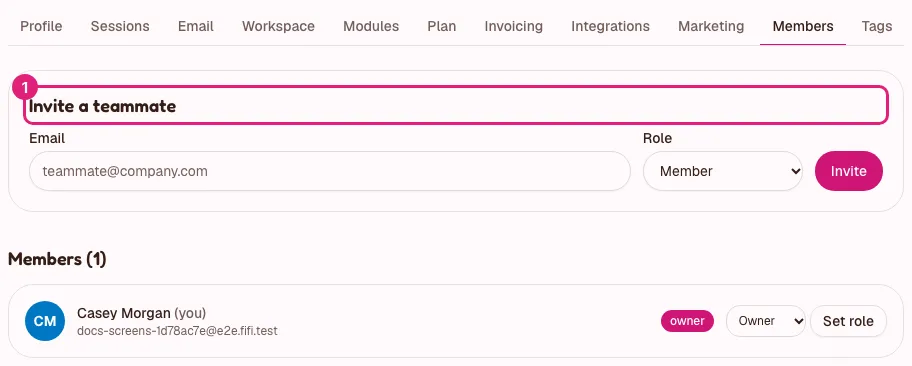
- Open Settings → Members.
- Under Invite a teammate, type their Email.
- Pick a Role. Leave it on Member unless the section above says otherwise.
- Click Invite.
What you'll see: an Invitation link panel with a Copy button, and Fifi also emails the invitation. The link works once, only for that email address, for 7 days.
- If someone didn't get the email, copy the link and send it yourself. Under Pending invitations, New link starts a fresh 7 days (the old link stops working) and Revoke withdraws it.
The person opens the link, signs in with the same email address and clicks Accept invitation. The steps from their side are in Workspaces and teammates.
Tip
Invite people one at a time and check the role before you click Invite. You can change it later with Set role next to their name.
Change a role, or take access away
In Settings → Members, each person has controls next to their name.
- To change a role, pick the new one and click Set role.
- To remove someone's access, click Deactivate and confirm. They lose access straight away; their records stay with the team. Reactivate brings them back.
- To hand over ownership, click Make owner & step down next to the new owner and confirm. You become an admin.
When someone leaves, deactivate them the same day. If they connected a mailbox, see Connect your email for what happens to it.
What each person sets for themselves
Some settings belong to the person, not the workspace. Ask everyone to do these in their first week, or do them together.
| Setting | Where | Why it matters |
|---|---|---|
| Name and Timezone | Settings → Profile | The time zone decides "today" and "overdue" for their tasks, their calendar and when their daily digest arrives. |
| Daily digest | Settings → Profile | A morning email of their open tasks. It is on or off per person and per workspace. |
| Your hours | Settings → Booking | Nobody can book a person online until they set their hours. Needs Online booking. |
| Applicator licence | Settings → Service records, Technicians tab (an owner or admin types it) | Copied onto each service record when it is completed. Needs Service records. |
| Mailbox | Settings → Email | Each person connects their own. See Connect your email. |
Each person can also pick their own colors in Settings → Profile; see Your account.
What you'll see
- Settings → Members lists everyone with a role badge, and the number of active members.
- Members see the settings pages their role allows. The tabs for Service records, Invoicing, Integrations, Custom fields and API are only shown to owners and admins, and the pages members can open but not change are read-only, with a note saying who can.
- Fifi's operators can see a workspace's name, its owner's email and its counts, but not its records. See Your data, privacy and how long Fifi keeps records.
A first-week routine
- To do: Day 1: invite everyone as a member, and promote the office manager to admin.
- To do: Day 1: ask each person to set their Timezone and decide on the daily digest.
- To do: Day 2: each person connects their mailbox.
- To do: Day 2: anyone who takes bookings sets Your hours.
- To do: Day 3: an admin enters technicians' licences, if you use Service records.
- To do: End of week: open Settings → Members and check there are no pending invitations left over.
Check your work
- To do: Everyone who works in Fifi is listed under Members with the role you chose.
- To do: At least two people are owners, or you have decided one is enough.
- To do: There are no pending invitations for people who have already joined.
- To do: Each person has set their Timezone.
- To do: Nobody who has left the business is still active.
Troubleshooting
| What you see | Why | What to do |
|---|---|---|
| "That invitation isn't for this account." | They signed in with a different email address. | Ask them to sign out and use the address you invited. |
| "This invitation has expired. Ask your teammate to send a new one." | More than 7 days passed. | Click New link. |
| "A workspace needs at least one owner. Transfer ownership first." | You tried to remove the last owner. | Make someone else an owner first. |
| A teammate can't find a setting. | The page needs a role or a module they don't have. | Check the tables above, then Modules, business types and plans. |
Related
- Roles and permissions: the full table.
- Workspaces and teammates: creating workspaces, samples and switching.
- Activity log: who changed what.
- Connect your email
Something out of date? Tell us.