
Set up a freight brokerage or trucking business
About 45 minutes · For owners · Needs Business · Last checked in v0.61.0, Oct 2026
This guide is for freight brokers, carriers and dispatchers. You end with your shippers and carriers as companies, drivers and dispatchers as contacts, lanes on a pipeline, a first load with its stops and time zones, a board from open to delivered, check calls, proof of delivery, dock appointments and a first invoice. Your workspace calls your sales pipeline Lanes. It keeps the word Contacts for people. This guide doesn't cover dispatching software features Fifi doesn't have, such as live tracking.
Is this the right guide?
- Business type: Freight and logistics.
- At the end you'll have: shippers and carriers as companies, lanes, one load moved to Delivered, a rate confirmation, and an invoice for the customer rate.
- Time: about 45 minutes, not counting your lists.
- Plan: Pro covers everything here except Texting, which is on Business. During the beta every workspace has every module. See Modules, business types and plans.
New to Fifi? Do Your first hour with Fifi first.
Start with the sample
- Go to
/try/truckingand sign in. Fifi opens Lakeshore Freight (sample) on the load board. - Look at the board: loads from Open to Delivered, each with its shipper, route, rate and margin.
- Click a load. Look at its stops, its check calls under History, and its Documents.
- Click Calendar, then Floor. You see the cross-dock's eight doors, and which are in use.
- Open a shipper such as Joliet Packaging Co. and look at Activity: a dock photo and a photo of a crushed pallet corner are on the timeline (they show where Fifi's file storage is set up).
Nothing in a sample is sent to anyone. Click Start your real workspace on the banner when you're ready.
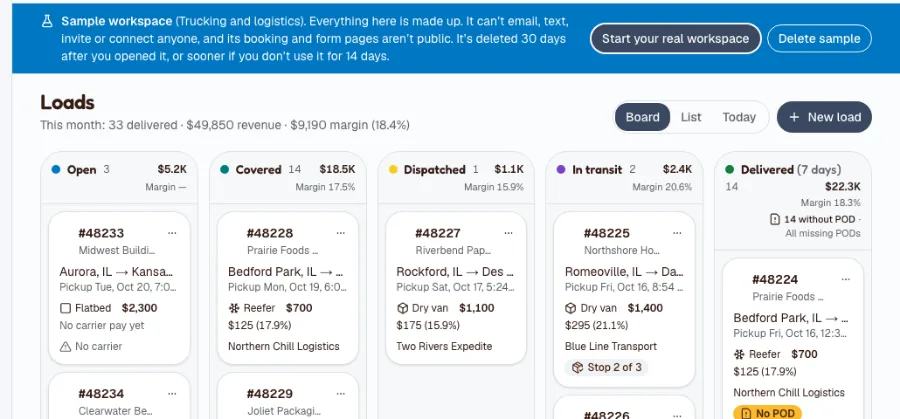
Create the workspace
- On Create your workspace, type your company's name and click Continue.
- Under What kind of business is this?, choose Freight and logistics.
- Pick a color scheme and click Create workspace.
What you'll see: Contacts, Companies, Lanes, Loads and Calendar in the menu. Freight starts with Lanes and pipeline, Email, Campaigns, Reports, Online booking, Forms and automations, Texting, Loads and Invoicing on.
Turn on what you need
Open Settings → Modules. Who can do it: owners and admins.
| Module | Set it | Why | Plan |
|---|---|---|---|
| Loads | On | Shipments, stops, the board and check calls | Pro |
| Lanes and pipeline | On | Win freight before you move it | Free |
| Online booking | On | Dock appointments and shipper calls | Pro |
| Invoicing | On | Invoice a delivered load | Pro |
| Forms and automations | On | A quote form and a driver application | Pro |
| On | Conversations with shippers and carriers | Free | |
| Reports | On | Pipeline and win reports | Free |
| Campaigns | On | Lane announcements | Pro |
| Texting | On, when it's not Coming soon | Text drivers from a load | Business |
| Ask Fifi | Optional | Questions about lanes; draft emails | Add-on |
| API and webhooks | Optional | Read loads from other tools | Pro |
Loads and their documents share your storage: Pro has 10 GB and Business 50 GB.
Business details
- Open Settings → Workspace.
- Click Upload logo. It shows on rate confirmations.
- Under Business address, type your address and click Save address. It appears on rate confirmations and invoices.
- Pick Colors and click Save colors.
See Set up your logo, colors and business details.
Your team and hours
- Open Settings → Members. Under Invite a teammate, type each person's Email, choose a Role and click Invite. Dispatchers and brokers can be Members. An operations manager is usually an Admin.
- Everyone sets Timezone in Settings → Profile. Loads show each stop in the stop's own zone, and in yours when they differ.
- People who take dock appointments or shipper calls open Settings → Booking → Your hours, set Weekly hours and click Save hours.
See Set up your team.
Loads, carriers and the dock
Shippers, carriers and drivers
- Shippers and carriers are companies. Click Companies, then New company, and type the Name. Tags go on contacts, not companies, so tag the people at each one Shipper or Carrier.
- Drivers and dispatchers are contacts. Click Contacts, then New contact. Choose their Company and give their Phone, so the number is in one place.
Lanes
A lane is a route you want to win, and it lives on the pipeline.
- Click Lanes, then New lane.
- Type a Lane name such as "Joliet, IL to Memphis, TN dry van".
- Set Value (USD) to what you expect the lane to be worth in a year, Stage and Expected close.
- Choose the shipper as the Company and add a Contact. Click Create lane.
What you'll see: the lane on the board. Drag it to another stage as the shipper decides. See the pipeline guide.
Create your first load
- Click Loads, then New load.
- Choose the Shipper and, if you like, the Lane.
- Choose the Equipment. A reefer takes a temperature range.
- Type the customer rate and the carrier pay, each all in. Fifi shows the margin. For example, a customer rate of $1,450.00 and carrier pay of $1,180.00 shows "Margin $270 (18.6%)".
- Under Stops, fill in the first stop as a pickup: Facility, Address, City and state, Time zone, Date and Time. Add Until for a first-come window.
- Click Add stop for the delivery. A new stop takes the previous stop's time zone, so change it if the delivery is in another zone.
- Click Create load.
A load can have 2 to 20 stops, the first a pickup and the last a delivery. Leave the load number blank and Fifi takes the next one. See Loads.
Move it across the board
- Open loads need a carrier. Open the load's menu and choose Move to… Covered, then fill in the carrier and carrier pay under Cover load.
- Use Arrived and Departed on each stop. Departing a pickup moves the load to In transit.
- Click Check call to record what the driver said, where they are and their ETA. Check calls can't be edited later.
- Choose Delivered… when it's done. Fifi offers a second step to add the proof of delivery.
Documents and the rate confirmation
- On the load, find Documents and click Add document. Choose POD (proof of delivery), pick the file (a PDF or photo up to 10 MB) and upload it.
- Once a load has a carrier, click Rate confirmation. It's a printable page for the carrier with every stop and the carrier pay. It never shows the customer rate or your margin. Click Print or save as PDF, send it from your own email, and add the signed copy to the load.
A delivered load without a proof of delivery shows No POD.
Photos of the dock or of damage. A load's documents hold its paperwork. For a picture of the dock, a trailer or a damaged pallet, add photos to the shipper's or the lane's timeline: choose Photos in the Activity box, tap Take photo from a phone, and add a caption such as "Crushed corner on pallet 4, noted on the BOL". See Photos on timelines.
Dock appointments and the cross-dock
If you run a cross-dock, give each door a seat and let carriers book a time.
- In Settings → Booking, under Seats, click Add a seat for each door. Choose the Kind, for example Door or Reefer.
- Under Booking types, click New booking type: "Dock appointment: delivery", 60 minutes, Free time after 15 minutes, and tick Needs a seat and the doors it can use.
- In Settings → Floor plans, click Add a floor plan, name it "Cross-dock", Place the doors and Save.
- On a stop, click Find dock appointments to attach a confirmed booking to it.
What you'll see: Calendar → Floor shows each door and who is using it. See Online booking.
Pipeline and naming
The stages never change. Here's one way to use them for lanes:
| Stage | What it means for a broker |
|---|---|
| Lead | A shipper has shown interest in a lane |
| Qualified | You know the volume, equipment and timing |
| Proposal | You sent a rate |
| Negotiation | You're waiting for an award |
Close a lane as Won when you're awarded it, or Lost with a reason: Price, Timing, Competitor, No decision or Other. Name each lane "Origin, ST to Destination, ST equipment". Loads then run on the lane, and the lane's page shows how many loads, this year's revenue and margin.
Custom fields worth adding
Open Settings → Custom fields, choose a tab and click Add field.
| Record | Label | Type | Why | Reminder |
|---|---|---|---|---|
| Company | MC number | Text | The carrier's motor carrier number | No |
| Company | USDOT number | Text | The carrier's DOT number | No |
| Company | Insurance expiry | Date | A task for the company's owner before the certificate runs out | Yes, 30 days before |
| Company | Trucks | Number | Size of the carrier's fleet | No |
| Lane | Loads per week | Number | Volume you expect | No |
See Custom fields and reminders.
Tags to start with
In Settings → Tags, click New tag. The sample uses these.
- Shipper
- Carrier
- Dry van
- Reefer
- Flatbed
- Contract
- Spot
- Driver applicant
- Newsletter
Forms and automations to start with
A quote form
- Open Settings → Forms and click New form.
- Type a Name ("Request a quote") and a Page address.
- Set Company to required. Click Add a field for "Origin (city, state)", "Destination (city, state)", "Equipment" (Choice), "Weight (lb)" and "Pickup date".
- Write a Thank-you message, tick Taking submissions and save.
A driver application and one automation
Make a second form named "Drive for us". Then open Settings → Automations, click New automation and add this.
| When | Only if | Then |
|---|---|---|
| A form is submitted (Drive for us) | Nothing | Add a tag: Driver applicant, then Create a task: "Call the driver applicant: licence, experience, home time", due in 1 day |
Automations never email anyone outside your team. See Forms and Automations.
Bring in your customers
Import companies first, then people.
- Export your shippers and carriers as a CSV file. Add your custom fields, such as MC number, as columns.
- Open Companies, click Import, choose the file, match the columns, click Preview import and import.
- Export your drivers and dispatchers. Include First name, Last name, Email, Phone and Address.
- Open Contacts and click Import. Under 1. Choose a file, pick “Contacts”, choose the file and click Continue. Match the columns and import.
People whose email domain matches a company link to it. See Import, export and Trash and Bring in your existing customers.
Email and texting
- Open Settings → Email and click Connect Gmail on the Gmail card. Outlook shows Coming soon until Fifi's Microsoft connection is set up.
- Texting is on Business. If Settings → Modules lists Texting under Coming soon, it isn't available yet. When it is, open Settings → Texting and click Get a number. A new number needs Fifi's approval before it can send.
- With Texting on, Text driver on a load opens your conversation with the driver.
Without texting, record what a driver said as a check call. See Connecting your email and Texting.
Invoicing for this business
Invoicing bills the shipper's customer rate. Carrier pay is a number on the load, not an invoice.
- Open Settings → Invoicing and set Prefix, Next number, Default terms, Tax name and Tax rate (%). Most freight services are not taxed, but ask your accountant.
- Open a delivered load and click Invoice. Fifi fills in the shipper, the customer rate as the price, and the shipper's reference as the PO.
- Check the line, issue the invoice and send it.
- Record the payment when it arrives.
For the example load, one line for $1,450.00 gives a total of $1,450.00 with no tax. Detention and lumper fees aren't separate fields on a load: add them as lines on the invoice. See Choose how you'll invoice and Create and send your first invoice.
Your first campaign
Announce a new lane to shippers who have an open lane with you.
- Open Marketing and click New campaign.
- Choose your audience, for example contacts with the Shipper tag.
- Write two or three sentences about the lane and send a test.
- Send.
With Ask Fifi on you can ask for "Announce a new lane to shippers with an open lane". See Campaigns and Send your first campaign.
Reports and the dashboard
Pin these three from Reports:
- Pipeline by stage: lanes from lead to award.
- Won lanes by month: what you won.
- Lanes by owner: who is carrying what.
The dashboard's Today's loads card shows today's pickups and deliveries. Ask Fifi's first questions here are "How many lanes did we win this month, and what were they worth?", "Which open lanes close this quarter?" and "What did each person win this quarter?" See Know your numbers.
Your first week
- To do: Your shippers and carriers are imported and tagged.
- To do: Carriers have an MC number, USDOT number and insurance expiry with a reminder.
- To do: Each active lane is on the pipeline.
- To do: You created a load with two stops and the right time zones.
- To do: You covered it with a carrier and printed the rate confirmation.
- To do: You moved it to Delivered and added a proof of delivery.
- To do: You recorded a check call.
- To do: You added a dock or damage photo to a shipper's timeline.
- To do: You invoiced a delivered load.
- To do: Your doors and the cross-dock floor plan are set up, if you run a dock.
- To do: The quote form and driver application are live.
- To do: Your mailbox is connected.
What Fifi doesn't do for this business yet
- Live tracking. Fifi records check calls by hand. It doesn't track trucks.
- Carrier invoices and settlements. Carrier pay is a number on the load. Fifi bills your customer only.
- Photos on a load. A load keeps documents (up to 10 MB, PDFs or pictures). Photos with captions go on the shipper's, the lane's or a contact's timeline.
- Detention, lumper and TONU fees as lines. Add them to the load's totals and say why in a check call, or add them as lines on the invoice.
- Load boards and EDI. Fifi doesn't post loads or exchange EDI messages.
- Editing loads through the API. The API reads loads. It can't change them.
- Recurring invoices. Duplicate an earlier invoice.
Troubleshooting and related
| What you see | Why | What to do |
|---|---|---|
| "Assign a carrier first" | Covered and later loads need a carrier and carrier pay | Use Cover load |
| Times look an hour off | A stop's time zone is wrong | Check each stop's Time zone |
| "This load was moved by someone else" | A teammate moved it first | The board refreshes; look again |
| No Rate confirmation button | The load has no carrier yet | Cover the load first |
| A document won't upload | Wrong type or too big | Use a PDF or a JPEG, PNG or WebP photo under 10 MB |
Still stuck?
Contact Fifi support with your workspace name, what you clicked and the exact message you saw. The troubleshooting guide covers the common ones.
Related: Loads, Online booking, Invoices, Custom fields and reminders.
Next: Choose how you'll invoice, then Know your numbers.
Something out of date? Tell us.