
Your first hour with Fifi
About 60 minutes · For owners · Last checked in v0.61.0, Oct 2026
This guide takes you from a new account to a workspace you can run your business in. You create the workspace, pick your kind of business, turn on the features you need, invite your team, connect email, bring in your customers and do one real thing: a first booking, deal, stay, service record, load or invoice. It doesn't cover every feature. Each step links to the guide that does.
Before you start
- Who can do it: the person who creates the workspace. You become its owner.
- Needs: nothing. Every plan can do every step here. Some features you meet (Booking, Invoicing, Loads) are on Pro and Business; during the beta every workspace has them. See Modules, business types and plans.
- Have ready (about 10 minutes of gathering):
- your logo as a PNG, JPEG or GIF under 1 MB;
- your business hours and the names and email addresses of your team;
- a spreadsheet of your customers saved as a CSV file (an export from your old system is fine);
- your business address and, if you will invoice, any tax or licence number you want on invoices.
- Time: about 60 minutes including a CSV of about 50 rows. Skip any step you can't do yet and come back to it.
Try a sample first (optional)
If you want to see Fifi filled in before you build your own, open a sample. It takes a few minutes and nothing in it is sent to anyone.
- Go to one of these addresses and sign in:
/try/grooming,/try/boarding,/try/consulting,/try/pestor/try/trucking. - Wait a second or two while Fifi fills the workspace in.
- Click around, change things, and look at the calendar, the pipeline and the reports.
- When you're ready, click Start your real workspace on the blue Sample workspace banner.
What you'll see: a made-up business with teammates, customers and a busy calendar. A sample goes away on its own after 30 days. More in Workspaces and teammates.
Create the workspace
- Go to the Fifi sign-in page and sign in with Google, Apple or an emailed code. See Signing in.
- On Create your workspace, type the Workspace name, for example "Bubbles & Bows Grooming". Click Continue.
- Under What kind of business is this?, pick the closest match. The next section helps you choose.
- Under Colors, pick a color scheme for the workspace. You can change it later.
- Click Create workspace. If you aren't sure about the business type, click Skip for now; Fifi picks "Other" and you can change it later.
What you'll see: your dashboard, with a Get started card. Fifi also sets your time zone from your browser. You are the workspace's owner.
Pick your business type
The business type does three things, and only three:
- It sets the words Fifi uses: Clients, Customers, Supporters or Contacts for the people; Projects, Jobs, Opportunities, Lanes or Deals for the work.
- It sets which features start on (the next section).
- It orders the report templates and Ask Fifi suggestions for your kind of business.
It never changes the pipeline stages: Lead, Qualified, Proposal and Negotiation are the same everywhere.
| If you are a... | Pick | People are called | Work is called |
|---|---|---|---|
| Groomer, boarding kennel, daycare, trainer, vet | Pet services | Clients | Deals |
| Salon, wellness, fitness or tutoring business | Appointment services | Clients | Deals |
| Agency, consultant or freelancer | Agency or consulting | Clients | Projects |
| Pest control, cleaning, trades or landscaping | Home and field services | Customers | Jobs |
| Freight broker, carrier or dispatcher | Freight and logistics | Contacts | Lanes |
| Sales team selling to other businesses | B2B sales | Contacts | Deals |
| Agent or brokerage | Real estate | Contacts | Deals |
| Charity, club or cause | Nonprofit | Supporters | Opportunities |
| Anything else | Other | Contacts | Deals |
Changed your mind? Open Settings → Workspace, find Business type, choose another under What kind of business is this? and click Save. This doesn't turn modules on or off.
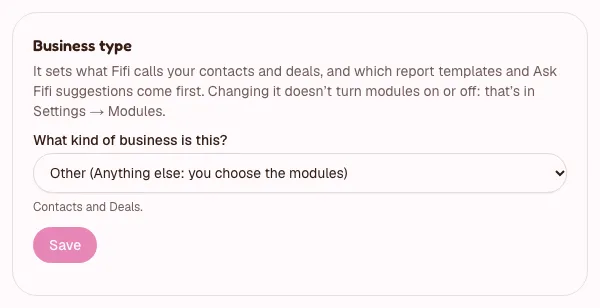
Business details, logo and colors
Who can do it: owners and admins (only owners can rename the workspace).
- Open Settings → Workspace.
- Check the Workspace name.
- Under Logo, click Upload logo and choose your file.
- Under Colors, click a scheme and then Save colors.
- Under Business address, type your postal address and click Save address. This address appears in campaign email footers and on invoices. It shows when Campaigns or Invoicing is on.
- Open Settings → Profile, check your Name and choose your Timezone, then click Save. Fifi uses your time zone for "today" and "overdue".
What you'll see: your logo in the workspace switcher at the top left. More in Workspace settings.
Turn modules on and off
A module is a feature you can switch on or off. Contacts, Companies, Tasks, notes, calls and meetings, Calendar, Search, and Import and export are always on. Everything else is a module.
- Open Settings → Modules. Who can do it: owners and admins.
- Under Always on, look at what you already have.
- Under Optional, look at what your business type switched on for you.
- Flip the switch for anything you need and don't have yet, or turn off what you don't want. It saves at once.
Turning a module off hides its pages and pauses its background work. It never deletes anything, and turning it back on brings everything back.
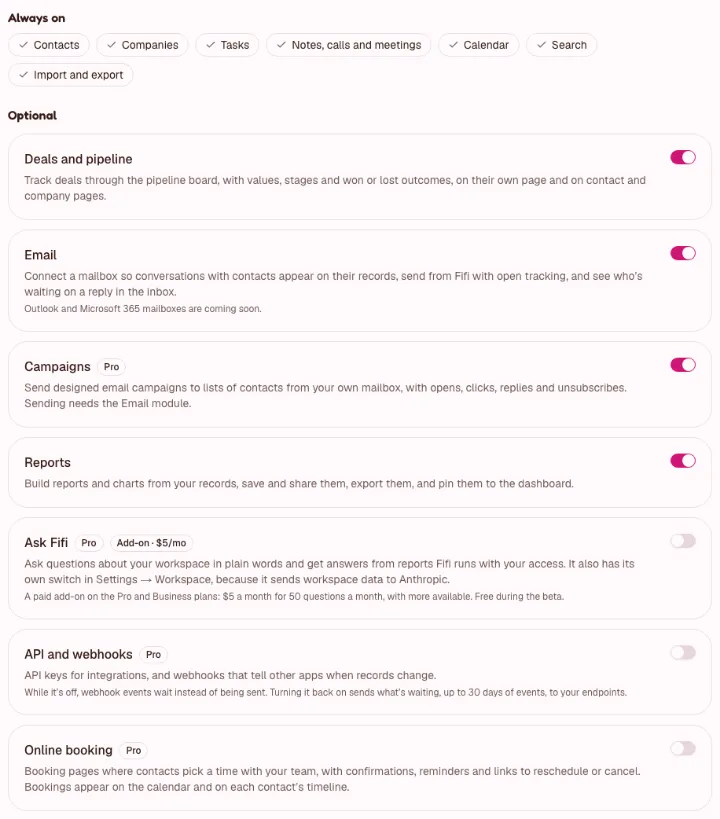
Note
Texting shows Coming soon until Fifi's texting service is switched on for all workspaces. If you see Coming soon in Settings → Modules, you can't turn it on yet. Everything else in this guide works without it.
Your business type's own setup guide says which modules to add. The short version:
| You do this | Switch on |
|---|---|
| Take bookings online or book appointments | Online booking |
| Keep pets and their vaccinations | Pets (Boarding needs Pets) |
| Board animals | Pets and Boarding |
| Record what you applied on a visit | Service records |
| Move freight | Loads |
| Bill customers | Invoicing |
| Collect leads from your website | Forms and automations |
Invite your team
Who can do it: owners and admins.
- Open Settings → Members.
- Under Invite a teammate, type their Email.
- Choose a Role: Member, Admin or, if you're an owner, Owner. Members create and edit records. Admins also manage settings and people.
- Click Invite.
- Copy the Invitation link or let the emailed invitation do the work.
What you'll see: the person under Pending invitations until they accept. The link works once, for that email address only, for 7 days. See Roles and permissions.

If people take bookings, each of them sets their own hours in Settings → Booking once Online booking is on. Until they do, nobody can book them.
Connect your email
Every person connects their own mailbox, one per workspace. Email must be on.
- Open Settings → Email.
- On the Gmail card, click Connect Gmail and allow both permissions, to read and to send.
- Wait a few minutes. The last 90 days start syncing.
What you'll see: your address with a status badge, then Up to date. Conversations with people in Fifi appear on their pages and in your Inbox. Fifi keeps only email with people and companies you have in Fifi.
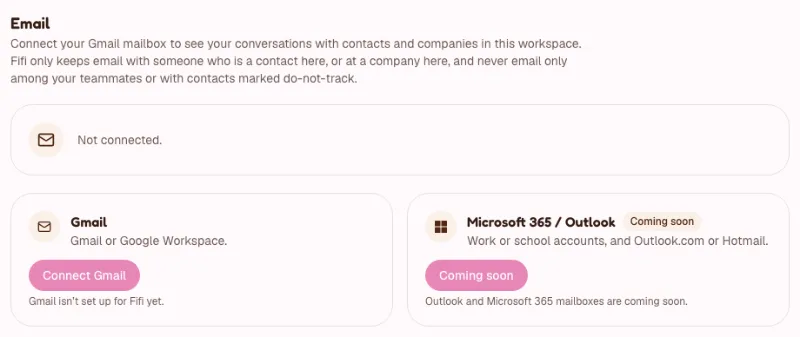
Note
Outlook and Microsoft 365 show Coming soon until Fifi's Microsoft connection is set up. If the button says Coming soon, use Gmail or skip this step. Gmail shows a greyed button and "Gmail isn't set up for Fifi yet." if Google isn't set up either. See Connecting your email.
Bring in your customers
Who can do it: owners and admins.
- Save your spreadsheet as a CSV file. The first row must be column names. The file can be up to 5 MB.
- Open Contacts (your menu may say Clients, Customers or Supporters) and click Import.
- Under 1. Choose a file, pick what you're importing, choose your file and click Continue.
- Under 2. Match the columns, check that each Fifi field has the right column. Fifi guesses common names.
- Choose what happens to duplicates: Skip it (keep what's in Fifi) or Update it with the file's values.
- Click Preview import and read the counts and the first rows.
- Click the import button.
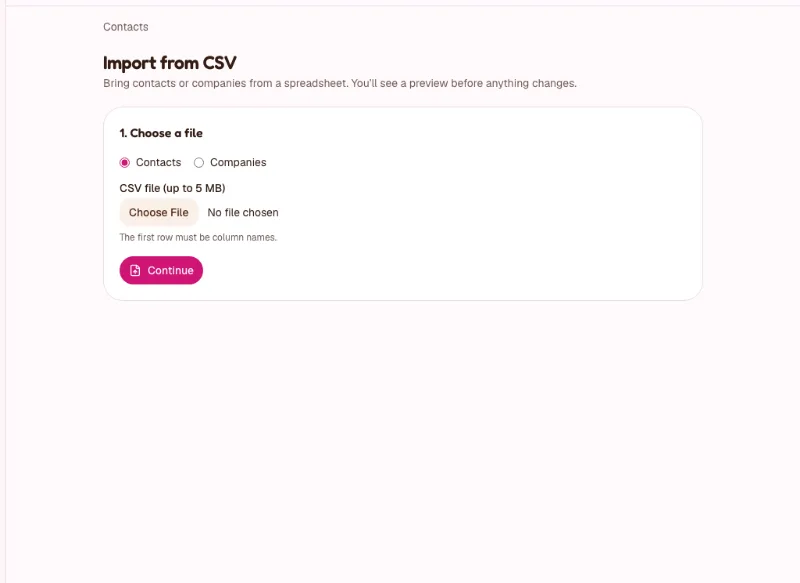
What you'll see: Import complete with how many records were created, updated and skipped. Open five of them and check the names, emails and phone numbers. Nothing changes until you click the import button. Details are in Import, export and Trash.
Tip
Add the custom fields you want first (Settings → Custom fields), so the import can fill them. See Custom fields and reminders.
Do one real thing
Do one thing for a real customer now. It shows you the loop your business will run on.
| Your business | Do this | Where |
|---|---|---|
| Grooming, salon, any appointment business | Book an appointment for a customer | Calendar → Add → Book an appointment (needs a booking type and your hours: Online booking) |
| Boarding | Book a stay | Boarding → New stay (needs a kennel and a pet: Boarding and pets) |
| Pest control and field services | Complete a service record on a visit | Open a visit on the calendar → Service record (Service records) |
| Freight | Create a load | Loads → New load (Loads) |
| Agency, B2B sales, real estate, nonprofit | Create a deal and move it a stage | Deals → add one, then drag it or use Move to… (Deals and the pipeline) |
| Any business with Invoicing on | Create and issue an invoice | Invoices → New invoice (Invoices) |
| Any business that takes pictures of its work | Add a photo to a customer's timeline | A customer's page → Activity → Photos (Photos on timelines) |
Decide how you'll invoice
If you bill customers, choose now so you don't have to redo it. Fifi records payments by default; it doesn't take them unless you connect your own Stripe account. You have three questions to answer:
- Where do invoices start? By hand, or from a visit, stay, service record, deal or load with Invoice.
- How do customers get them? Emailed from Fifi with a private link, or marked as sent while you send them yourself.
- How do you get paid? Payments you record by hand (cash, check, transfer, card taken elsewhere), online through your own Stripe account, or both.
Invoicing is a module, on for several business types and off for the rest. Turn it on in Settings → Modules, then set numbering, terms and tax in Settings → Invoicing. The invoicing series walks through each choice, and Invoices is the reference. Fifi isn't tax or accounting advice: ask your accountant about tax rates and how long to keep records.
The Get started checklist
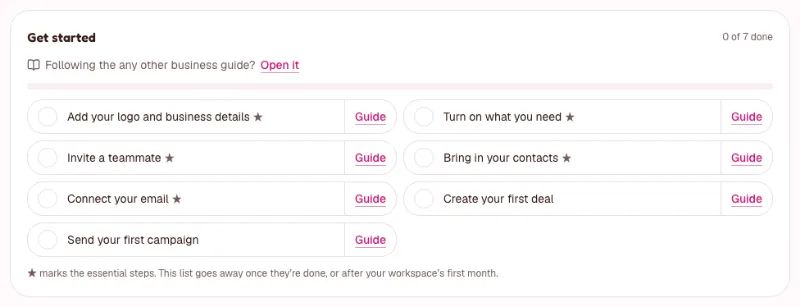
The Get started card on your dashboard lists the steps for your kind of business and the modules you've turned on, and ticks each one off from what is really in your workspace (the card says "3 of 9 done"). Click a step to go to the right page, or click Guide beside it to read how. A ★ marks the essential steps. The card goes away once they are done, or after your workspace's first month. A step only an owner or admin can take says "Ask an owner or admin" to a member.
Day two and week one
- To do: Open the Dashboard each morning and clear My tasks.
- To do: Add tags you'll actually use (Settings → Tags).
- To do: Add your first forms and booking types if you take enquiries online.
- To do: Ask your team to sign in and set their own hours and time zone.
- To do: Send your first campaign, to a small list, from your own mailbox. See Campaigns.
- To do: Pin three reports to the dashboard. See Reports.
- To do: Export your data once, so you know how: Settings → Workspace → Export everything.
Which guide next
Your business type has its own step-by-step guide with the exact settings, field names and a first-week checklist.
| Your business | Next guide |
|---|---|
| Dog grooming (Pet services) | Set up a dog grooming business |
| Pet boarding (Pet services) | Set up a pet boarding business |
| Agency or consulting | Set up an agency or consulting business |
| Pest control, cleaning and trades (Home and field services) | Set up a pest control or home services business |
| Freight and logistics | Set up a freight brokerage or trucking business |
| Salons, wellness, fitness, tutoring (Appointment services) | Set up an appointment-based business |
| B2B sales | Set up a B2B sales team |
| Real estate | Set up a real estate team |
| Nonprofit | Set up a nonprofit |
| Anything else | Set up Fifi for any other business |
Check your work
- To do: The workspace has your name, logo, address and color scheme.
- To do: The business type is right: the menu says the words you use.
- To do: The modules you need are on, and the ones you don't need are off.
- To do: At least one teammate has an invitation, or is in.
- To do: Your mailbox shows Up to date, or you've decided to wait.
- To do: Your customers are in, and five random records look right.
- To do: You did one real booking, deal, stay, record, load or invoice.
Troubleshooting
| What you see | Why | What to do |
|---|---|---|
| The menu says "Contacts" and "Deals" but you wanted Clients and Projects | The business type is Other or B2B sales | Change it in Settings → Workspace → Business type |
| A module you need isn't in the menu | It's off | Turn it on in Settings → Modules |
| "Gmail isn't set up for Fifi yet." | Google isn't set up on this Fifi | Skip email for now |
| "Only admins and owners can import." | Your role is Member | Ask an owner or admin, or send them your file |
| Import preview shows problems | Missing names or bad values in some rows | Fix the rows listed and import again |
Still stuck?
Contact Fifi support. Tell us your workspace name, what you clicked and the exact message you saw. The troubleshooting guide covers the common ones.
Related
- Workspaces and teammates
- Workspace settings
- Modules, business types and plans
- Roles and permissions
- Import, export and Trash
- Next: pick your business type's guide in the table above.
Something out of date? Tell us.