
Connect your email
About 15 minutes · For everyone · Last checked in v0.61.0, Oct 2026
When you connect your mailbox, your conversations with customers show up on their pages and in your Inbox, and you can send email from Fifi without leaving it. This guide connects Gmail, explains what Fifi keeps and what it ignores, and sends a first email. It doesn't cover campaigns to many people; see Send your first campaign.
Before you start
- Who can do it: every member connects their own mailbox. Owners and admins decide whether Fifi tracks opens for the whole workspace.
- Needs: the Email module. If Settings → Email is missing, an owner or admin can turn it on in Settings → Modules.
- Have ready: the Google account (Gmail or Google Workspace) you use for customer email. You get one connected mailbox for each person in each workspace.
Which mail services you can connect depends on how this copy of Fifi is set up:
| Service | How to tell it is available |
|---|---|
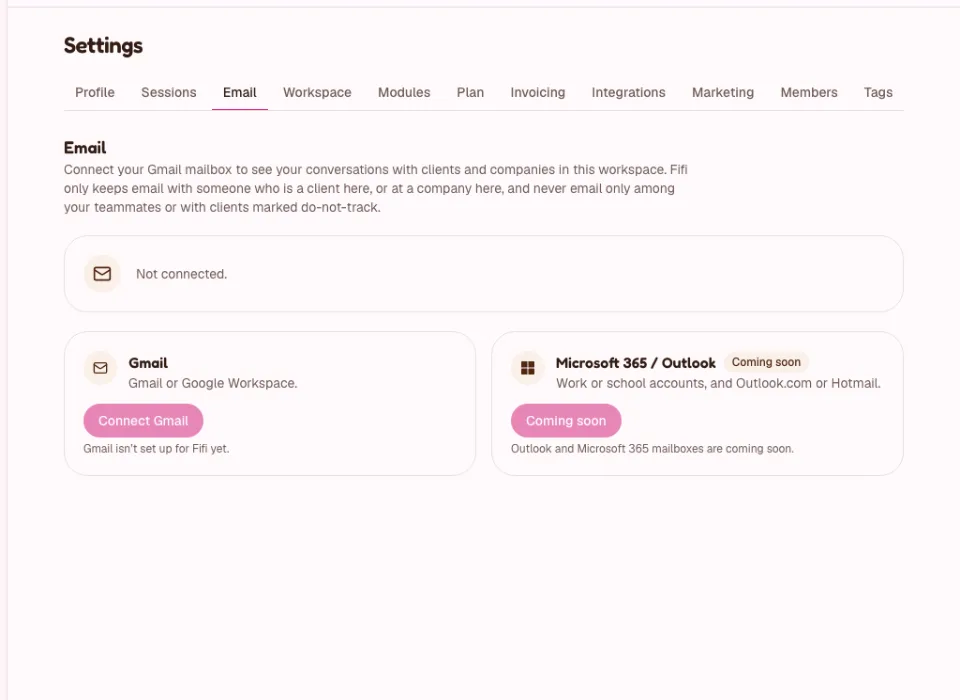
| Gmail (including Google Workspace) | The Connect Gmail button is active. If it is greyed out and says "Gmail isn't set up for Fifi yet.", it isn't available here yet. |
| Microsoft 365 / Outlook | The card shows a Coming soon badge and the button says Coming soon until it is set up. When it is, the button reads Connect Microsoft 365 / Outlook. |
Don't plan around Outlook until you see the active button. Everything below works the same way for it once it is on.
Steps
1. Connect your mailbox
- Open Settings → Email.
- On the Gmail card, click Connect Gmail.
- Choose your Google account and allow both permissions: to read and to send email. Leave both boxes ticked.
What you'll see: Fifi brings you back with "Gmail is connected. The last 90 days are syncing now; this can take a few minutes." Your address shows a status badge that moves from Waiting to sync to Syncing the last 90 days to Up to date.
Fifi asks Google only to read mail and to send mail. It never changes, deletes or labels anything in your Gmail.
2. Know what Fifi keeps
Fifi keeps a message only when someone on it from outside your team is a contact in this workspace, or sent it from a company's domain that is in this workspace. It never keeps:
- email only between you and your teammates, or anyone on your own domain;
- email with a contact whose Don't track email switch is on;
- newsletters, promotions and automatic replies, unless they come from a contact;
- email with nobody but you on it.
Everyone in the workspace can see synced conversations on contact and company pages. Your Inbox shows only your own mailbox. If a teammate synced the same conversation, it appears once, with "also in 1 other mailbox". The full rules are in Connecting your email.
Heads up
Fifi stores a formatted email's text and layout so you can read it later, but pictures from the internet stay hidden until you click Show images on that message. That stops senders learning when you read their email.
3. Choose your tracking
Emails you send from Fifi include a tiny invisible image so Fifi can mark them Opened. Some mail apps load images on their own, and then the mark says Opened (unconfirmed).
- For the whole workspace, an owner or admin can switch Open tracking off in Settings → Workspace. It applies to emails sent from then on.
- For one contact, open their page and switch on Don't track email. Fifi then won't sync or track email with them. You can still email them from Fifi; it goes without tracking and Fifi keeps no copy.
Tracking only ever covers email sent from Fifi. Email you send from Gmail itself is tracked for replies, not opens.
4. Send your first email
- Open a contact's page and click Email.
- Under To, tick who gets it. You can pick up to 10 people.
- Write a Subject and a Message. It is plain text.
- Click Send.
What you'll see: "Email sent." The email goes out through your own mailbox, so it is in your Sent folder and threads normally, and it appears on the contact's timeline as Email sent.
Fifi won't email teammates or contacts without an email address. Send those from Gmail directly. Fifi limits how many emails you can send in a minute and in a day, and Gmail has its own daily limit; the numbers are in Sending email and tracking. Campaigns are spaced out to stay under the same limits; see Campaigns.
5. Find replies
- Click Inbox in the menu.
- Use the filters Needs reply, Awaiting reply, Opened, Replied or Follow up to see what needs you.
- Open a conversation and click Reply, Follow-up task or Close thread.
A conversation is Needs reply when the last message is from them, and Awaiting reply when it is from you or a teammate. The dashboard's Email card counts both. See Sending email and tracking.
6. Disconnect or start over
- Open Settings → Email.
- Click Disconnect Gmail. Email already synced stays on your contacts. Any campaign sending from your mailbox pauses.
- To remove what Fifi synced from your mailbox, click Delete synced email… and confirm. Everyone stops seeing it. Your Gmail isn't touched.
What you'll see
- Settings → Email shows your address, its status, when it last synced and how many conversations are in this workspace.
- Your customers' conversations appear on their contact and company pages, with their state.
- Your teammates see those conversations too, but not other mail in your mailbox.
Check your work
- To do: Settings → Email shows your address and Up to date.
- To do: You sent one email from a contact's page and saw it in your Sent folder.
- To do: You know who in your team can see synced conversations (everyone in the workspace).
- To do: You decided whether Open tracking stays on.
- To do: Contacts who asked not to be tracked have Don't track email switched on.
Troubleshooting
| What you see | Why | What to do |
|---|---|---|
| "Gmail isn't set up for Fifi yet." | Google isn't set up on this copy of Fifi. | Nothing to do yet; ask the person who runs your Fifi. |
| Needs reconnecting | Google stopped Fifi's access. | Click Connect again. |
| "Fifi needs both permissions, to read and to send email." | You unticked one at Google's screen. | Connect again and leave both ticked. |
| "That's a different Google account from the one whose email is synced here." | You connected another account. | Connect the same account, or delete the synced email first. |
| A conversation is missing. | The contact's email isn't in Fifi, or they are marked Don't track email, or the mail was between teammates or a newsletter. | See Connecting your email. |
| "Connect your email to send it from Fifi." | You haven't connected a mailbox. | Do step 1. |
Related
- Connecting your email: every status and message.
- Sending email and tracking
- Send your first campaign
- Set up your team
Something out of date? Tell us.